ALTERNATIVES / MEETING TRANSLATION
A JotMe Alternative for Browser Meetings and YouTube
MeeLang is an alternative to JotMe when your meeting or YouTube video plays in desktop Chrome. It is built for accurate translation, low delay and a comfortable bilingual subtitle experience inside the browser tab. For meetings in native desktop apps, JotMe is a strong option because its desktop app captures computer audio.
Product comparison · Reviewed November 18, 2026

THE SHORT ANSWER
Which one fits your meeting?
MeeLang vs JotMe is mainly a choice about where the conversation happens. MeeLang focuses on browser meetings and YouTube with a subtitle experience inside the page. JotMe also has a desktop app for meetings outside the browser.
Choose MeeLang for browser sessions
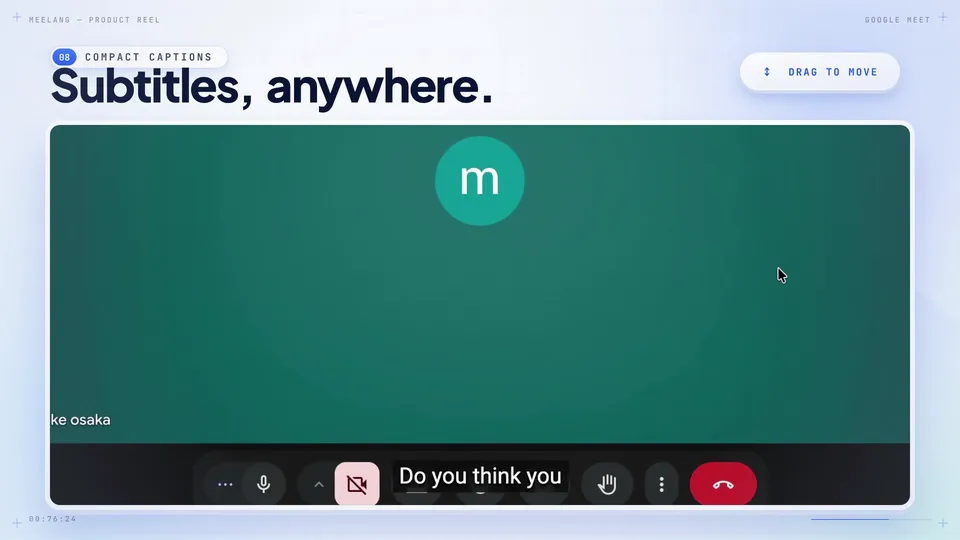
Use MeeLang in desktop Chrome for Google Meet, Zoom web, Teams web, Webex web or YouTube. Its compact and full conversation views keep bilingual subtitles close to the meeting or video.
Choose JotMe for desktop apps
Use JotMe Desktop when your meeting runs in a native Zoom, Teams, Webex or other desktop app. It can listen to computer audio across meeting tools.
Test both if quality is your priority
If you mostly meet in a browser, compare the same language pair and call in both tools. Read names, numbers and technical terms, and judge how quickly usable subtitles appear.
HOW THE WORKFLOWS DIFFER
The path from a meeting to subtitles
MeeLang works inside supported browser pages. JotMe also offers a Google Meet Chrome extension for live speech translation, plus a desktop app that captures computer audio. The main difference is where each tool works.
MeeLang
BROWSER MEETING OR YOUTUBE · AUDIO
- Playing tab audio
- Speech recognition
- Bilingual subtitles
YOUTUBE VIDEO · CAPTIONS AVAILABLE
- YouTube captions
- Translation
- Bilingual subtitles
MeeLang can recognize audio during supported browser meetings and YouTube playback, or translate existing YouTube captions.
JotMe
GOOGLE MEET · CHROME EXTENSION
- Meeting audio
- Speech recognition
- Bilingual subtitles
DESKTOP MEETING APP · JOTME DESKTOP
- Computer audio
- Speech recognition
- Bilingual subtitles
JotMe’s Google Meet extension also translates spoken audio into live subtitles. JotMe Desktop uses microphone and computer audio, including audio from native meeting apps.
SIDE BY SIDE
MeeLang vs JotMe
Compare the actual surface you use and the result you need. Both Chrome extensions handle spoken meetings; JotMe also has a desktop app for native meeting clients.
| Question | MeeLang | JotMe |
|---|---|---|
| Browser meetings | Translates audio in supported browser meetings and displays bilingual subtitles in the page. | Its Chrome extension works inside Google Meet; its desktop app can run alongside browser meetings. |
| Native desktop meetings | Designed for meetings and videos in desktop Chrome, not native meeting clients. | JotMe Desktop uses computer audio and supports native Zoom, Teams, Webex and other meeting apps. |
| Google Meet speech translation | Can recognize meeting audio; Google Meet captions are not required. | Its Google Meet extension also provides live transcription and translation of meeting speech; its desktop app can use computer audio. |
| YouTube video or live stream | Can translate playing audio when usable captions are absent, or translate existing YouTube captions. | JotMe Desktop can listen to computer audio from media playing on the computer; its Chrome extension is for Google Meet. |
| Translation quality | Built for accurate, readable bilingual subtitles in live browser sessions. Review names, numbers and context in your own call. | Offers multiple translation models and custom vocabulary on desktop. Results depend on audio, language pair and settings. |
| Delay and meeting UI | Designed for low delay, with compact subtitles or a full conversation view inside the meeting tab. | The Meet extension has an in-meeting overlay; the desktop app displays translation alongside the meeting app. |
| Additional tools | Focuses on live translation, bilingual transcripts and YouTube translation in Chrome. | Also offers desktop and mobile apps, meeting notes, recordings and file translation. |
| Starting price and free tier | Free tier: free 30 minutes of speech translation and 10 caption-based videos per month. Pro: $9.99 per month with 600 minutes of speech translation and 100 caption-based videos. | Free: 20 live translation minutes, 50 transcription minutes and 5 AI credits per month. Pro: $20 per month, or $10 per month with $120 billed annually; includes 200 live translation minutes, 500 transcription minutes and 20 AI credits per month (Basic mode consumes minutes at 1×, Premium Quality at 2×, and Fast Audio at 5×). |
| Best fit | Browser-based meetings and YouTube when you want translation integrated with what you are watching. | Native desktop meeting clients or workflows spanning desktop, mobile and in-person use. |
Features, prices and allowances reflect published product information reviewed November 18, 2026. JotMe’s annual Pro rate is billed upfront; translation and transcription use separate allowances. Check current checkout prices before purchasing.
CHOOSE BY SCENARIO
Where each tool makes sense
Your meeting is in a browser tab
For Google Meet, Zoom web, Teams web or Webex web in desktop Chrome, MeeLang places bilingual subtitles close to the conversation. You can choose a compact overlay or a fuller conversation view.
You watch YouTube or a live stream
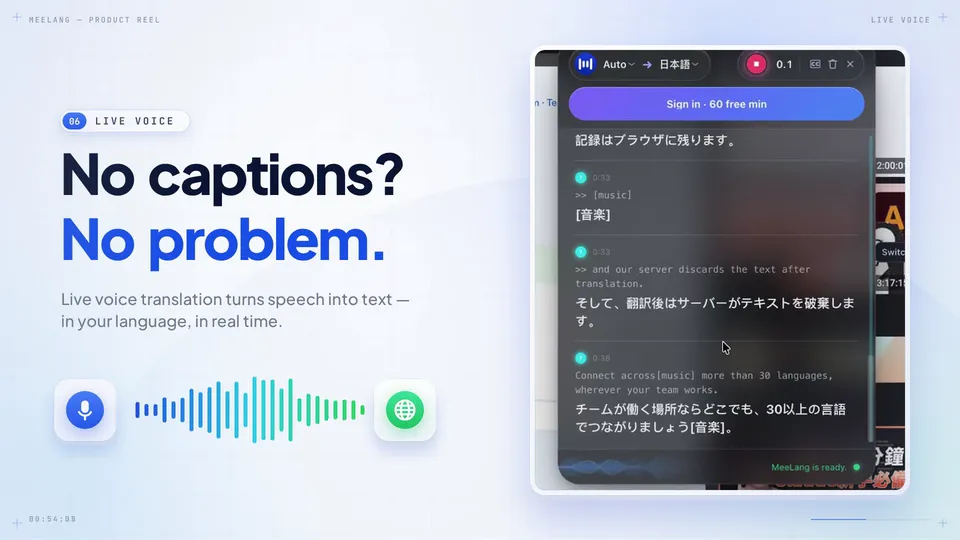
MeeLang can translate from the playing audio if usable captions are missing, and it can use existing captions when a YouTube video provides them. This keeps the translation in the viewing tab.
SEE THE MEETING UI
Two ways to read a MeeLang meeting
These MeeLang recordings show the compact subtitle view and full conversation view. They do not simulate JotMe or prove a performance advantage.
TEST IT IN YOUR WORKFLOW
How to judge accuracy, delay and comfort
-
Use the same conversation
Pick a browser meeting you are allowed to test, then use the same spoken language, target language and audio conditions in both tools.
-
Check the source and surface
In Google Meet, compare both extensions on the same spoken call. MeeLang works from tab audio, while JotMe offers live speech translation in its Meet extension. JotMe Desktop can also use computer audio from native apps.
-
Read the result as a participant
Compare meaning, names, numbers, time until usable subtitles appear, continuity and how comfortably each view fits your meeting. These observations are more useful than an unverified universal ranking.
SOURCES & SCOPE
How this comparison was prepared
We checked JotMe’s product pages, pricing and usage documentation and MeeLang’s current product pages. JotMe’s public descriptions differ on whether its Meet extension captures audio or reads Meet captions; check the behavior of the version you use. Translation accuracy, delay and interface preference vary by meeting.
JotMe documentation
MeeLang product pages
COMMON QUESTIONS
JotMe alternative FAQ
Is MeeLang an alternative to JotMe for Google Meet?
Yes. MeeLang can translate Google Meet audio in desktop Chrome and show bilingual subtitles in the meeting tab. JotMe’s Meet extension also provides live speech translation, and its separate desktop app can capture computer audio.
Which JotMe alternative works for YouTube videos?
MeeLang can translate audio while a YouTube video or live stream plays in desktop Chrome, including when usable captions are missing. It can also translate existing YouTube captions. JotMe Desktop can use computer audio from media; its Chrome extension is focused on Google Meet.
Is MeeLang more accurate and faster than JotMe?
MeeLang is designed for responsive, readable bilingual subtitles in browser meetings. We have not published a controlled MeeLang vs JotMe accuracy or latency benchmark. Test both on the same audio, language pair and settings to decide which result works better for you.
Should I use JotMe for a Zoom or Teams desktop app?
JotMe is a good choice for a native meeting client. Its desktop app captures computer audio across meeting tools. MeeLang focuses on supported meetings and videos in desktop Chrome.
How does MeeLang pricing compare with JotMe?
Both offer a free plan. MeeLang Free includes 10 caption-based videos and, after sign-in, 30 speech translation minutes per month. JotMe Free includes 20 live translation minutes, 50 transcription minutes and 5 AI credits per month. MeeLang Pro is $9.99 per month with 600 speech translation minutes and 100 caption-based videos. JotMe Pro is $20 per month, or $10 per month with $120 billed annually, and includes 200 live translation minutes, 500 transcription minutes and 20 AI credits per month. JotMe’s translation and transcription balances are separate, and live translation minutes are consumed at 1× in Basic mode, 2× in Premium Quality, and 5× in Fast Audio.
Does MeeLang join my meeting as a bot or require admin approval?
No. MeeLang runs locally in your Chrome tab without joining as a meeting bot or requiring workspace admin approval, so other participants see no extra recorder in the participant list. JotMe also works without a meeting bot through its Chrome extension or desktop app.
Can I save and export bilingual transcripts?
Yes. MeeLang stores bilingual transcripts (original speech and translation together) locally in your browser, where you can search, export, or delete them; meeting content is not stored on MeeLang servers. JotMe also offers meeting notes, transcripts, and recordings across its desktop and web workflows.
Try MeeLang in your next browser meeting
If your meetings or YouTube videos play in desktop Chrome, try MeeLang’s bilingual subtitles in the tab and see how the translation feels in your own workflow.
Install MeeLang Try the live translation tool