ZOOM MEETING TRANSCRIPTION
Zoom Transcription
Turn the conversation you hear in a Zoom web meeting into text as it happens. MeeLang keeps the original and translated lines together in a transcript you can review in Chrome.
For Zoom web client in Chrome · No meeting bot
THE QUICK ANSWER
How to transcribe a Zoom meeting in your browser
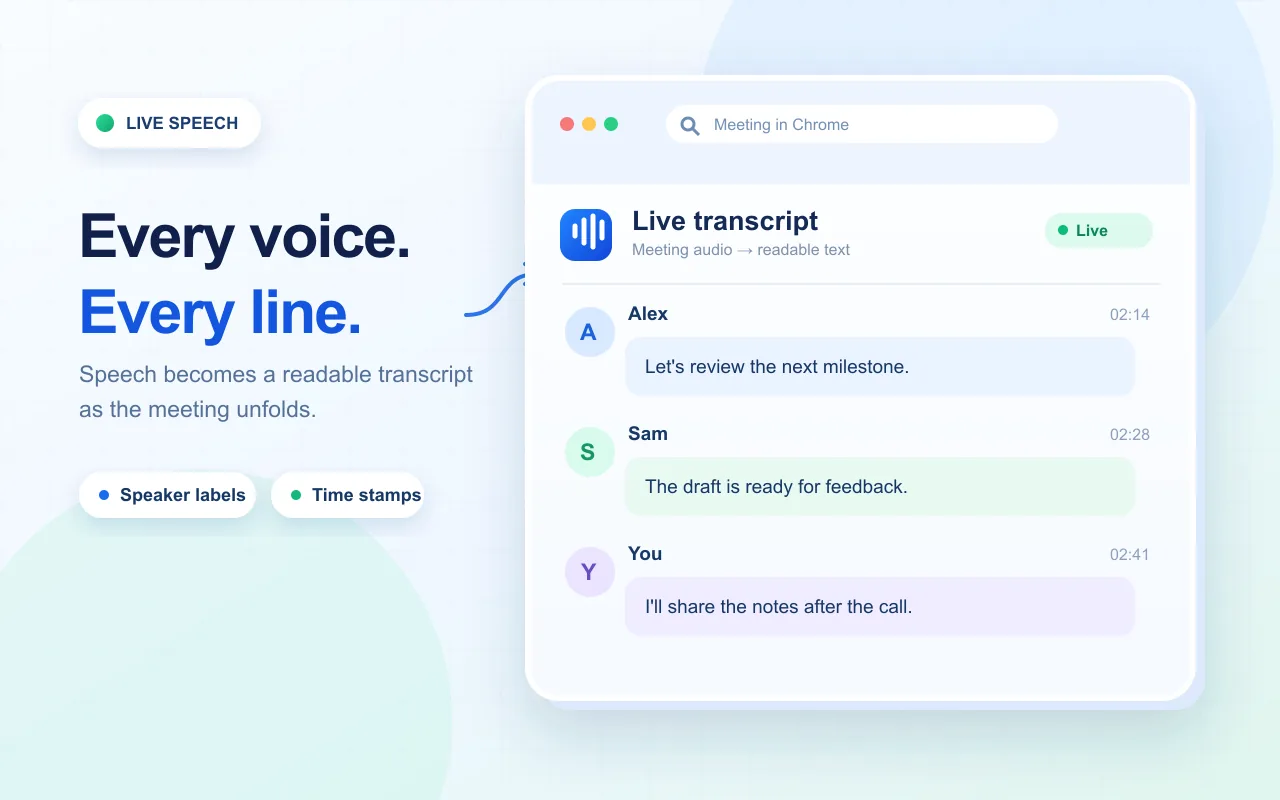
MeeLang creates a running transcript from the audio in your Zoom web client tab. Join from your browser in Chrome, start MeeLang before the discussion you want to capture, and choose the language you want to read. The extension turns the speech it hears into original and translated text while the meeting continues, so you can follow the call without waiting for the host to send a transcript.
Open the full subtitle window to scroll back through the lines captured in that session, then copy or export them for your notes. If you want to search across saved records or filter by platform, open MeeLang's Meetings page in the extension options. MeeLang records audio only while it is active and does not backfill speech from before you started it. The record is kept in the current Chrome profile. This flow uses the Zoom web client in Chrome, not the desktop or mobile apps.
HOW IT WORKS
How to transcribe a Zoom web meeting

Join from your browser
Open the Zoom invite in Chrome and choose Join from your browser. MeeLang only detects the active web-client meeting, not the page that prompts you to open the Zoom app.
Start live subtitles
Open MeeLang in the meeting and select the language you want to read. Start before the part of the call you need; earlier speech is not added later.
Review or export
Open the full subtitle window to scroll through earlier lines from this session, then copy or export the text. Use the Meetings page to search across saved records.
A TRANSCRIPT YOU CAN FOLLOW
Keep the live line and the conversation around it
WHICH TRANSCRIPT SHOULD YOU USE?
Choose a transcript based on where you work
Both routes can help you review a Zoom call. Choose the one that fits your browser, organization, and language needs.
| What you need | MeeLang in Chrome | Zoom's built-in option |
|---|---|---|
| Best fit | A personal live transcript with translation while you join the Zoom web client in Chrome. | An organization-managed transcript when the meeting account has Zoom transcription available and enabled. |
| Who starts it | You start MeeLang in your browser. It does not join as a meeting participant. | A host or administrator may control feature availability and meeting settings. |
| After the call | Review the record in the same Chrome profile, then copy or export text for your notes. | Follow your organization's Zoom workflow for access to any native transcript. |
IF THE TRANSCRIPT LOOKS INCOMPLETE
Check the audio reaching MeeLang
COMMON QUESTIONS
Zoom Transcription FAQ
Can I transcribe a Zoom meeting without recording it?
Yes. MeeLang transcribes live audio in the Zoom web client tab and does not require a Zoom cloud recording. It is a Chrome extension and works when you join the meeting from your browser.
Does MeeLang work with the Zoom desktop app?
No. MeeLang works with the Zoom web client in Chrome. Use the meeting invite's Join from your browser option.
Can I export a Zoom transcript?
Yes. Use the full subtitle window to copy or export the transcript text. The record stays in your browser profile.
Does the Zoom host have to enable transcription?
No. MeeLang creates a transcript from the meeting audio available in your browser. Other participants do not need to install it.
Can MeeLang distinguish speakers in a Zoom transcript?
Yes. MeeLang uses speaker diarization to distinguish voices in Zoom meeting audio and labels their contributions in the transcript.
Why is a section of my Zoom transcript missing?
MeeLang only captures speech while the extension is running in the web meeting. If it started late, the tab had no audible meeting audio, or speech overlapped, some lines may be absent or unclear. It cannot recover speech from before the session began.
Keep the details from your next Zoom call
Start MeeLang before the discussion and review the transcript in the same Chrome profile afterward.
Add to Chrome