YOUTUBE LIVE STREAM CAPTIONS
YouTube Live Stream Captions
Watch a live talk, class, or launch in another language without waiting for subtitles. MeeLang listens to the playing YouTube stream, recognizes speech, and shows original and translated lines in your own browser.
Live voice translation · desktop Chrome · starts when you turn it on
THE QUICK ANSWER
How does MeeLang caption a YouTube livestream?
Use MeeLang live voice translation while the YouTube livestream plays in Chrome. It listens to the audio from the main player, recognizes what is spoken, then translates the recognized text into the language you choose. This workflow works without captions supplied by the creator.
Start before the part of the broadcast you need: voice recognition begins when you turn it on and cannot recover earlier speech. The captions appear only in your browser, with the original and translation together. A short delay is normal because each phrase must be recognized and translated.
HOW IT WORKS
How to caption a YouTube live stream
Open the live stream in Chrome
Go to the YouTube live watch page in desktop Chrome and let the broadcast play in the main player.
Start live voice translation
Open MeeLang, select the language you want to read, and turn on live voice translation before the segment you need. MeeLang detects the spoken language from the audio.
Read and revisit the live lines
Follow the original speech and translation in MeeLang. Use the full subtitle view to look back through lines captured during your active session.
LIVE VOICE TRANSLATION
From livestream audio to translated captions
This demo shows MeeLang’s live voice interface on a YouTube player. The same voice controls are used during a livestream: MeeLang follows the player audio in your Chrome tab, without relying on a YouTube caption track.
Listen to the player
MeeLang captures the sound of the video playing in your own tab. It does not use your microphone or publish captions back to the creator’s broadcast.
Recognize the spoken words
Speech recognition turns incoming audio into source-language text. Clear voices help; music, crowd noise, and overlapping speakers can obscure names or short phrases.
Translate for your view
MeeLang translates the recognized text and displays both languages in the subtitle view. Recognition and translation happen in sequence, so the line follows the speaker with some delay.
GET READY FOR THE LIVE EVENT
Set up before the moment you need to follow
Live voice translation follows the broadcast from the time you start it. A short check before a keynote or Q&A can prevent a gap you cannot fill afterward.
USE CASES
Live translation for moments you want to catch
A live broadcast keeps moving whether or not captions are available. Start voice translation ahead of the part you care about and use the original plus translated lines to stay with the discussion.
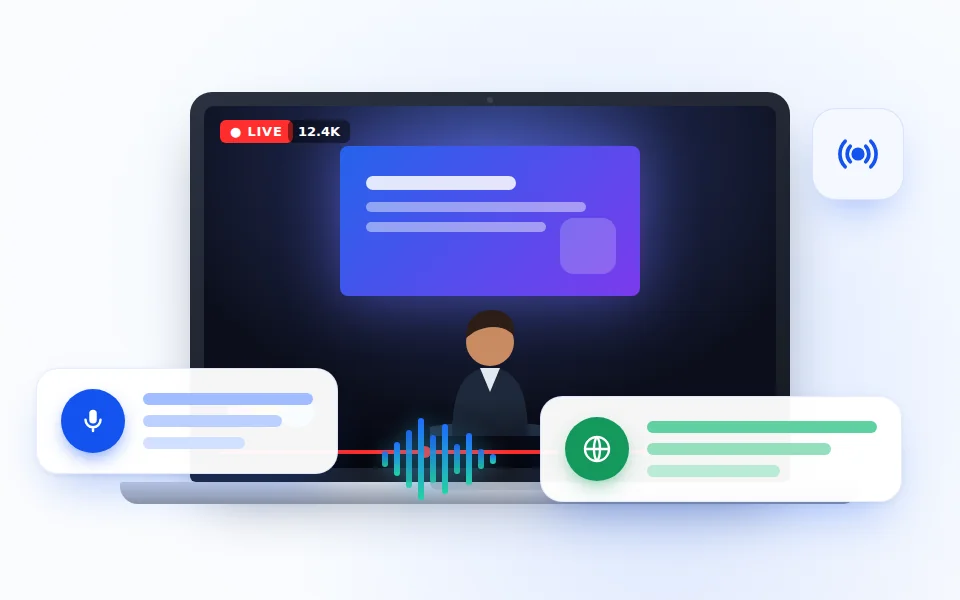
Product launches and keynotes
Follow a speaker’s announcement in your reading language while keeping names and phrases visible in the original. The live lines can help you take notes on what changed as it is announced.

Classes and conference talks
Read the explanation as the lecturer speaks, then use the full subtitle view to revisit a recent term during the same session without leaving the stream.
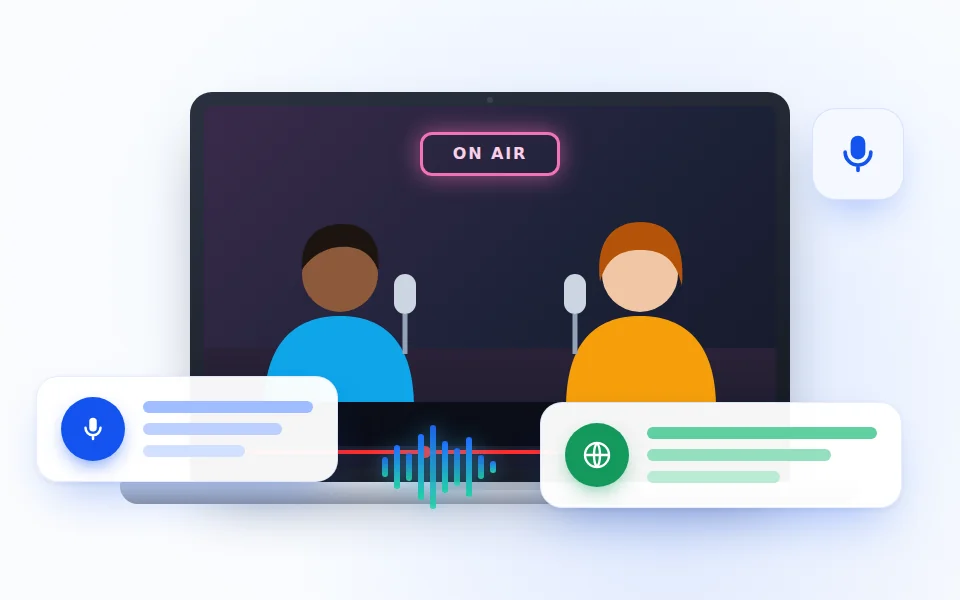
Live interviews and Q&A
Keep up with questions and responses when the speakers use different terms or talk quickly. Glance at the source line to check a name or concept before adding it to your notes.
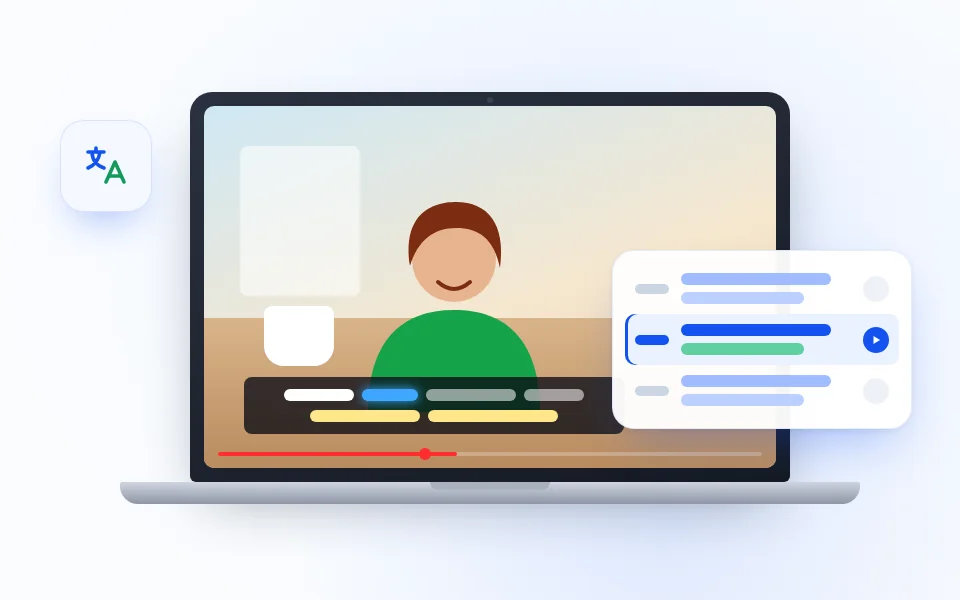
Language lessons and study streams
Join a live lesson or study session and read the explanation in a language you know. Keep the instructor’s original wording visible when a new phrase, example, or pronunciation point needs a closer look.
LIVE STREAM CAPTIONS · YOUTUBE
Where live translation helps most
In a lecture, follow the explanation without stopping to search unfamiliar terms. During a product launch or conference Q&A, read the current line and glance back at a name or decision. In live commentary, keep up even when the broadcast has no creator-supplied subtitles.
Use the translated lines to stay oriented, then verify exact figures, names, and quotations from the source or replay before sharing them. MeeLang is a personal viewing aid; it does not change the caption feed for other viewers.
Explore YouTube video translationCOMMON QUESTIONS
YouTube Live Stream Captions FAQ
Can MeeLang translate a YouTube livestream without YouTube captions?
Yes. Start live voice translation in desktop Chrome. MeeLang recognizes the audio playing in the YouTube player and translates that speech; the creator does not need to provide a caption track.
Does live voice translation read YouTube’s CC track?
This livestream workflow listens to the player audio and recognizes speech directly. It does not depend on YouTube CC. A recorded replay may offer different caption options after the event.
How quickly do translated live captions appear?
Captions follow the speaker after speech recognition and translation. A short delay is normal, and it can grow when audio is noisy, speakers overlap, or the connection is unstable.
Can I see the original speech and translation together?
Yes. MeeLang can show the recognized source-language line alongside its translation so you can check terminology while the livestream continues.
Can I start halfway through and see what was said earlier?
No. Live voice translation only captures speech after you start the session. Begin before the part of the stream you want to follow or save.
Can I keep a transcript of the livestream?
You can review or export lines captured during your live voice session. It is not a complete transcript if you started late or audio was interrupted, and recognition errors should be checked against the recording.
Will other viewers see the translated captions?
No. MeeLang shows the translated lines in your browser. It does not edit the creator’s stream or publish captions to the YouTube audience.
Does it work in the YouTube mobile app?
No. Use a YouTube live watch page in desktop Chrome with the MeeLang extension installed.
No translated captions appear
Check that the broadcast is playing in the main YouTube player, MeeLang live voice translation is active, and the tab is producing sound. If MeeLang shows a sign-in or usage message, resolve that in the extension and try again.
Captions stop after an ad or buffering
Wait until the live program resumes. If MeeLang does not receive new audio after the player changes state, restart live voice translation. Speech during the gap cannot be recovered by the live session.
The text is late or inaccurate
Recognition runs before translation, so a short delay is expected. Music, crowd noise, simultaneous speakers, and weak microphones can reduce accuracy. Recheck names, numbers, and quotations before using them in notes.
The captions are in the wrong language
Open MeeLang and choose the language you want to read. MeeLang detects the spoken language from the audio; give it a clear phrase to identify the speaker after changing settings.
Understand the live moment as it happens
Open the stream in desktop Chrome, start MeeLang live voice translation, and read translated speech as the broadcast continues.
Add to Chrome