TEAMS BILINGUAL TRANSCRIPT
Microsoft Teams Bilingual Transcript
Keep the words spoken in a Teams meeting beside the translation you followed. MeeLang creates a bilingual meeting record in Chrome while the call is running.
Original + translation · Browser-stored meeting record

THE QUICK ANSWER
What is a bilingual Teams transcript?
A bilingual transcript pairs what people said with a translation in the language you chose. In a multilingual Teams meeting, keeping both lines makes it easier to understand the discussion and check a name or technical phrase against the original.
MeeLang captures the Teams web meeting in Chrome while it is active. The transcript is available in the browser profile used for the call, where you can revisit and export the captured text. Start MeeLang before the part of the meeting you want to keep.
HOW IT WORKS
How to create a bilingual Microsoft Teams transcript

Open Teams on the web
Join the meeting in Chrome; MeeLang does not run inside the Teams desktop application.
Choose the language you want to read
Start MeeLang and select a target language before the meeting content you need is spoken.
Revisit the bilingual record
Open the full subtitle view to scroll through the active conversation. Afterward, find the saved meeting record on MeeLang’s Meetings page to search, copy, or export its bilingual transcript.
WHY BOTH LANGUAGES MATTER
A record you can check and reuse
Original and translation in one record
Read both versions together so a translated phrase does not hide a key term or change the emphasis of the original.
Check unfamiliar terms
When an expression or product name sounds unusual in translation, compare its source line before you add it to a customer note or project handoff.
Keep the record personal
MeeLang stores the captured record in your browser profile. Export a copy for your own notes; use your organization’s approved sharing channel when others need access.
READ BOTH SIDES
How to use a bilingual Teams transcript
A bilingual record is most helpful when you need to understand a discussion now and verify the source wording later. Use the original line as a reference whenever translation could affect a decision.
Set your target language first
Choose the language you want to read in MeeLang before starting the session. It stores translated lines beside the source text as the Teams web meeting runs.
Compare source lines when wording matters
For a date, amount, product name, or commitment, read the original and translation together. The translation helps you follow; the source helps you verify.
Search in the Meetings page
Search spans captured original and translated lines across your meeting records. Filter the meeting list by platform and available speaker labels to narrow the results; the full subtitle window itself is for reading and scrolling.
Export a focused follow-up copy
After finding the relevant meeting, copy or export the transcript for your own notes. Check the source line before forwarding a decision, amount, or commitment.
USE CASES
When a bilingual Teams transcript helps after the call
Use the paired source and translation when someone needs to understand a decision, follow up with a customer, review an interview, or revisit a lesson.

Share a team decision
Send the source wording with the translation when teammates who missed the Teams call need the exact context behind a project decision.
TEAM DECISIONS
Check a client commitment
Search the saved Teams meeting record for a date, requirement, or next step, then compare both languages before quoting the commitment.
CLIENT FOLLOW-UP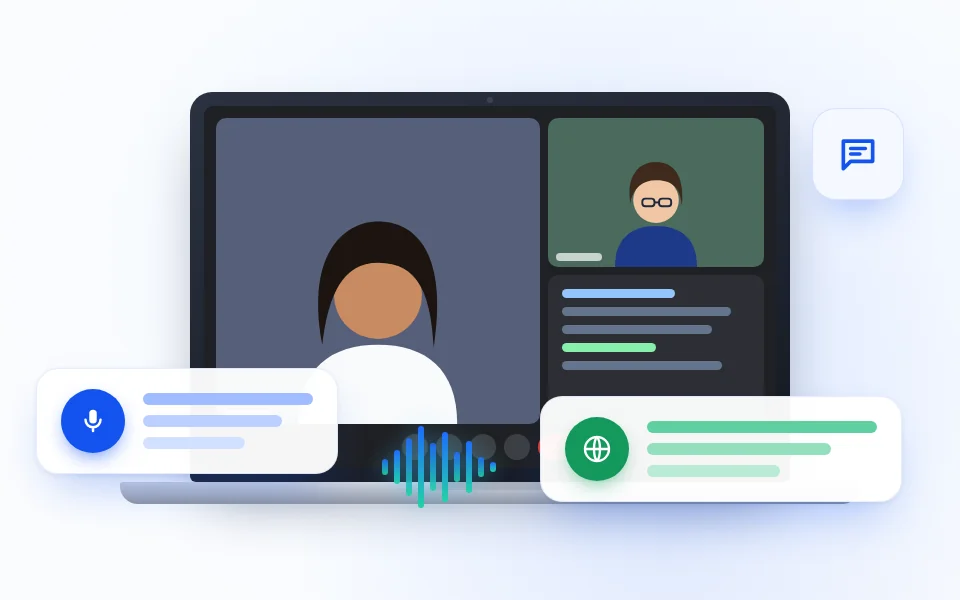
Review an interview
Revisit each speaker’s answers in both languages when preparing follow-up questions or comparing feedback with your team.
INTERVIEW REVIEW
Review a class or training session
Compare the instructor’s explanation with its translation while reviewing notes after a Teams class, workshop, or onboarding session.
LEARNING REVIEWCHOOSE THE RIGHT VIEW
Captions for now; bilingual transcript for later
Use the compact subtitle view when you need to keep your attention on the live Teams call. Open the full view when you want to scroll through recent lines. The saved bilingual meeting record is better for searching and follow-up after the session. It is created only while MeeLang is running; it is not a transcript of meetings you missed.
PICK THE RECORD THAT FITS
Personal bilingual notes or an organization transcript?
MeeLang stores the captured bilingual meeting record in the Chrome profile that ran the session. A Teams transcript follows the organization’s meeting policies and storage permissions. If your team requires a shared or governed transcript, check the organizer’s Teams settings; use MeeLang when you need source text paired with your reading language in your own browser. See Microsoft’s transcript and storage guidance.
COMMON QUESTIONS
Microsoft Teams Bilingual Transcript FAQ
Can I see the original and translated text together?
Yes. When translation is enabled, MeeLang pairs the source line with its translation in the live view and saved meeting record.
Where is my Teams bilingual transcript stored?
It is stored locally in the Chrome profile that captured the session. Use that same profile to review or export it later.
Where do I search for a phrase in a saved transcript?
Open MeeLang’s Meetings page and search the source or translated text. The full subtitle window lets you read and scroll through the active conversation.
Can I get a transcript from a meeting I missed?
No. MeeLang only captures content while it is running. Ask the meeting organizer whether a Teams transcript is available for a past call.
Does MeeLang replace the organization’s Teams transcript?
No. MeeLang is a personal bilingual record in your browser. If your organization requires a governed transcript or shared file, check your Teams meeting policies and organizer settings.
I cannot find the meeting after closing the call. Where should I look?
Open MeeLang’s Meetings page in the same Chrome profile used for the call. Records are stored in that browser profile, not synced across profiles automatically.
Search does not find a phrase. Why?
Search covers text that MeeLang actually captured in the source or translated lines. Confirm the extension was running when the phrase was spoken, then try a distinctive word from either language.
Can MeeLang distinguish speakers in a bilingual Teams transcript?
Yes. Speaker diarization distinguishes voices in Teams meeting audio and labels their contributions alongside the original and translated text.
Keep both sides of the conversation
Use MeeLang in the Teams web client to follow and revisit a bilingual transcript.
Add to Chrome