TEAMS AI MEETING SUMMARY
Microsoft Teams AI Summary
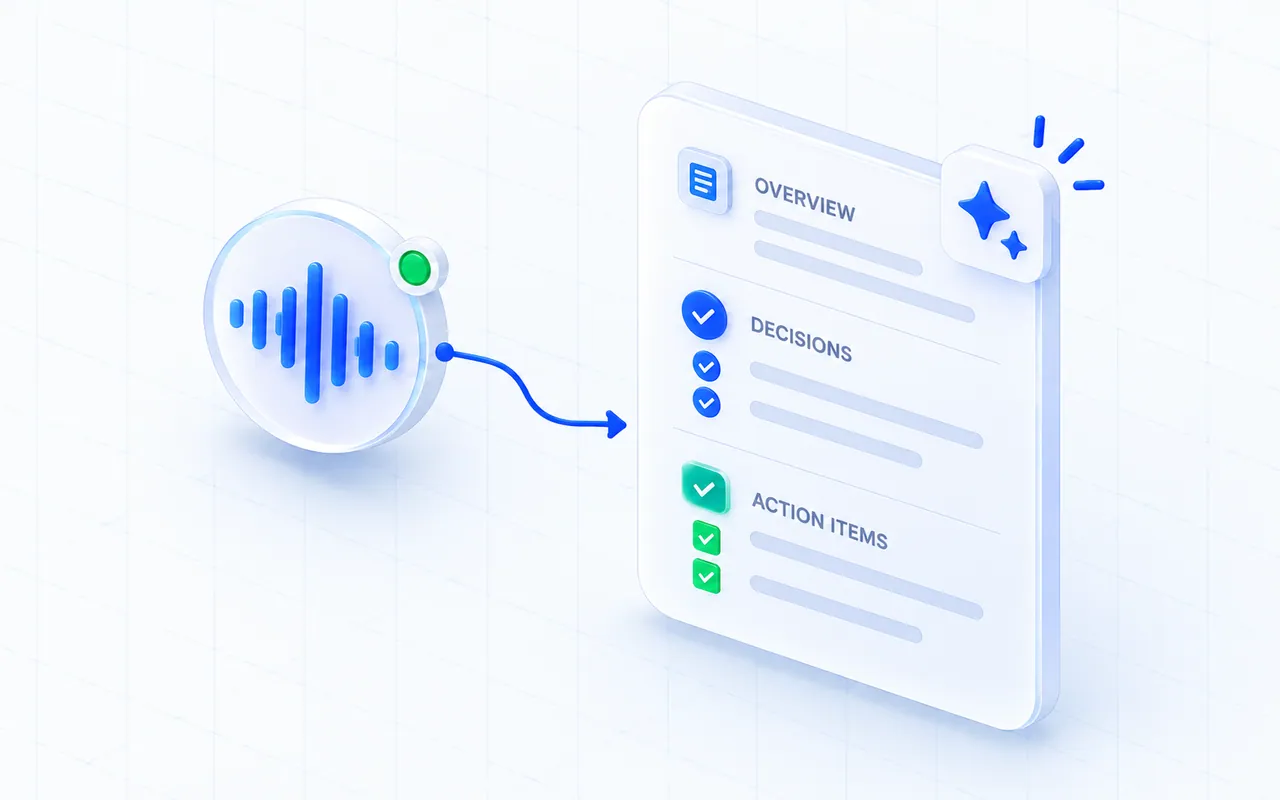
Get a concise recap of a Teams conversation from the transcript MeeLang captured. Review the overview, decisions, and action items in the language you choose.
Requires a captured transcript · AI summary with Pro
THE QUICK ANSWER
Summarize a Teams conversation you captured
MeeLang does not create a recap automatically when the call ends. It first needs transcript lines captured while the Teams web meeting is running; after the call, you start summary generation from the saved meeting record.
The summary feature requires a signed-in account with the AI summary entitlement (available with Pro). MeeLang sends the transcript for that generation request and does not retain the transcript on the server. The recap can still omit nuance, so verify names, commitments, and decisions against the original lines.
HOW IT WORKS
How to generate a Microsoft Teams AI summary
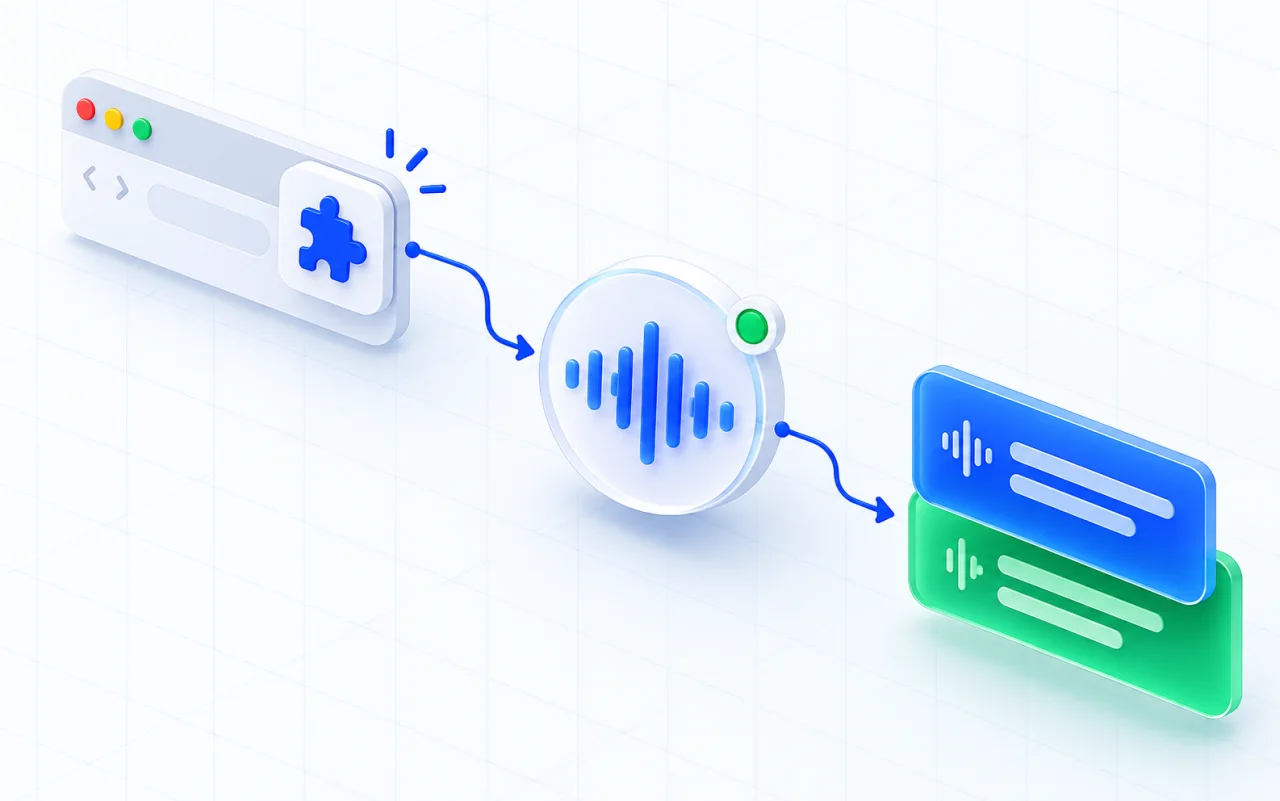
Capture the meeting in Chrome
Join Teams on the web and run MeeLang during the discussion to create a transcript.
Open the meeting record
After the call, open the record in the browser profile used for the meeting.
Generate and review the summary
Use the AI summary feature with Pro, then verify important details against the bilingual transcript.
WHAT YOU GET
A recap grounded in your meeting transcript
Overview
Review the central topic and outcome in a short summary in your selected language.
Decisions
Scan the decisions that the summary identifies, then return to the transcript for the surrounding context.
Action items
Review suggested next steps and confirm owners or deadlines from the original conversation before sharing.
PUT THE RECAP TO WORK
Use a Teams summary for the work that follows
Different meetings leave different follow-up questions. Use the overview to orient yourself, then check the transcript when a decision or commitment needs context.
Prepare a project handoff
For a project review, scan the overview and decisions to find what changed, then check the relevant transcript lines for the reasons and open questions. Add confirmed owners and dates to your team's existing tracker.
Follow a multilingual discussion
Generate the recap in your selected subtitle language when the Teams discussion was held in another language. Compare a key point with the original transcript before passing it to colleagues who missed the call.
Draft a client follow-up
Use the suggested actions to make a checklist for a follow-up message. Verify product names, quantities, dates, and commitments against the conversation before sending anything outside your team.
Resolve unclear ownership
If an action item has no owner or sounds tentative, use the speaker labels and captured lines to review the context, then confirm ownership with the participants.
USE CASES
Where a Teams AI summary saves follow-up time
Start with the generated recap to find the main outcome, then use the bilingual transcript when a decision or commitment needs exact context.

Send a weekly team recap
Use the overview and decisions to draft a short update, then check the transcript before quoting a commitment from the Teams call.
TEAM UPDATES
Prepare a client follow-up
Review the action list for dates and next steps after a multilingual discussion. Confirm the owner yourself when the transcript does not make it clear.
CLIENT FOLLOW-UP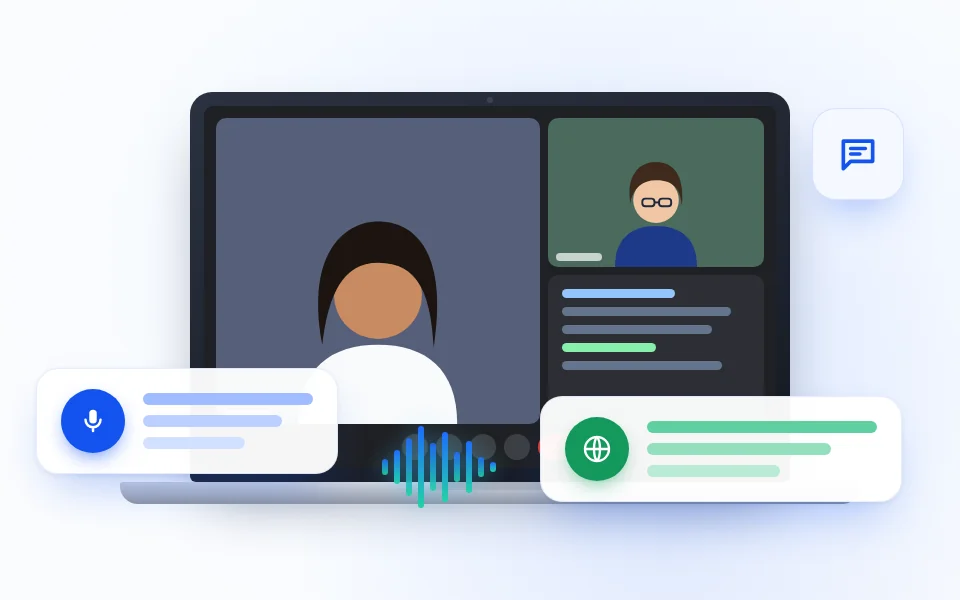
Share a structured interview debrief
Capture the main themes after the interview, then open the bilingual transcript when the hiring decision depends on the candidate’s exact words.
INTERVIEW DEBRIEF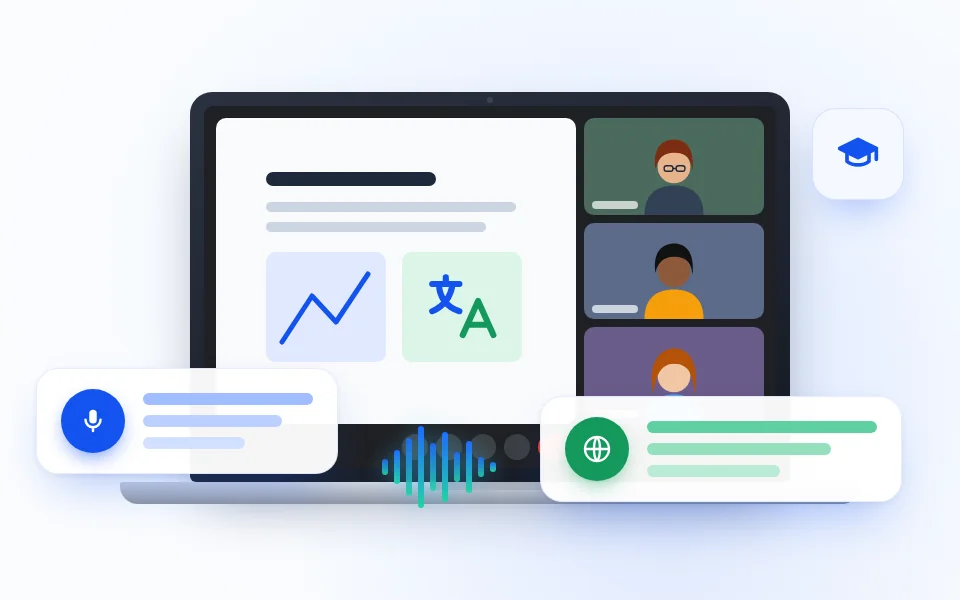
Capture a class or workshop recap
Summarize the main explanations and action points after a multilingual lesson, training session, or team workshop.
LEARNING RECAPGOOD TO KNOW
Use the AI summary as a starting point
Summary generation is user-triggered after the call, requires sign-in and Pro access, and needs a transcript MeeLang captured. You can edit the overview; decisions and action items remain generated lists. AI can omit nuance or misinterpret an action owner, so compare the recap with the transcript before sharing decisions or tasks.
COMMON QUESTIONS
Microsoft Teams AI Summary FAQ
Can MeeLang summarize a Teams meeting it did not capture?
No. MeeLang needs the transcript lines captured while it was running in the meeting.
Does the summary generate automatically when the call ends?
No. Open the captured meeting record and request a summary manually after the meeting.
What does a Microsoft Teams AI summary include?
MeeLang generates an overview, decisions, and suggested action items from the captured transcript in your selected language.
Do I need a paid MeeLang plan?
AI summaries require sign-in and the AI summary entitlement, available with Pro. Check the pricing page for current plan details.
Can I rely on the summary to assign owners?
Review action owners, deadlines, and decisions against the original transcript. AI may omit context or leave an owner unclear.
Turn a captured Teams call into clear next steps
Capture the conversation in Chrome, then use MeeLang Pro to generate and review its summary.
Add to Chrome