YOUTUBE BILINGUAL SUBTITLES
YouTube Bilingual Subtitles
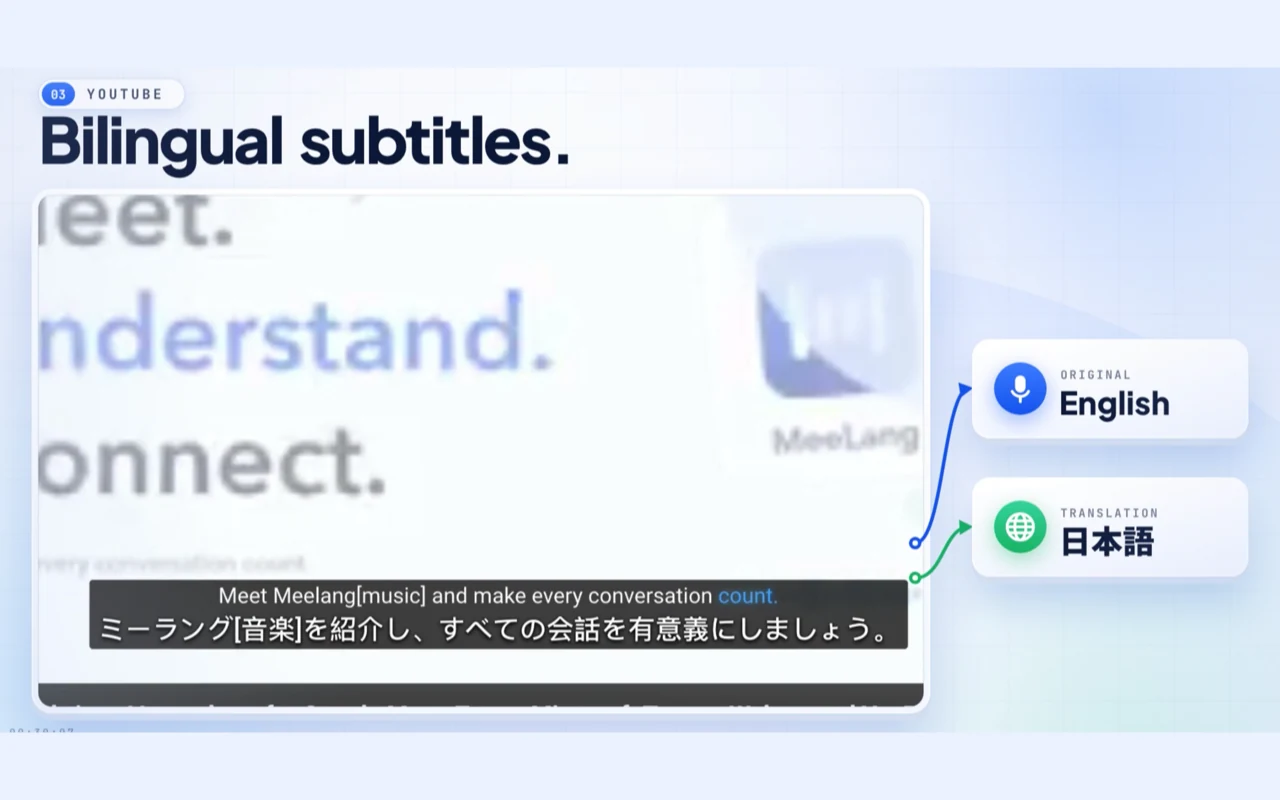
Read the original and translation together as a YouTube video plays. MeeLang keeps both lines in the player, so a technical term, name, or turn of phrase stays connected to what the speaker actually said.
Original and translation in one player view
THE QUICK ANSWER
How to watch YouTube with bilingual subtitles
Bilingual subtitles show the source line and its translation at the same time. On a video with a usable caption track, MeeLang follows the video’s timing and pairs each original line with a translated one. You can keep watching in fullscreen without switching YouTube’s CC language back and forth.
Use the translation to understand the point, then glance at the original to check a name, a specialist term, or the speaker’s phrasing. You can put the translation above or below the source, adjust the overlay for the player, or show only the translation when you want less text.
HOW IT WORKS
How to add bilingual subtitles to a YouTube video
Play a video in Chrome
Open youtube.com on desktop and start a video, Short, or supported stream.
Select your subtitle language
Open MeeLang in the player and choose the language you want to read.
Show both language lines
Choose the bilingual layout and place the translation above or below the original caption.
BOTH LANGUAGES IN VIEW
Read the meaning without losing the original
This caption-track demo shows two aligned lines in the YouTube player. The original stays visible as a reference while the translated line helps you follow the explanation. You decide which line is closer to the video and how much space the overlay takes.
Check the source instantly
A translation gives you the idea; the source line helps confirm a proper noun, acronym, or phrase that would be easy to misread on its own.
Choose the reading order
Place the language you read first on top and the supporting line beneath it. Change the layout when you move from careful study to casual watching.
Return to a useful phrase
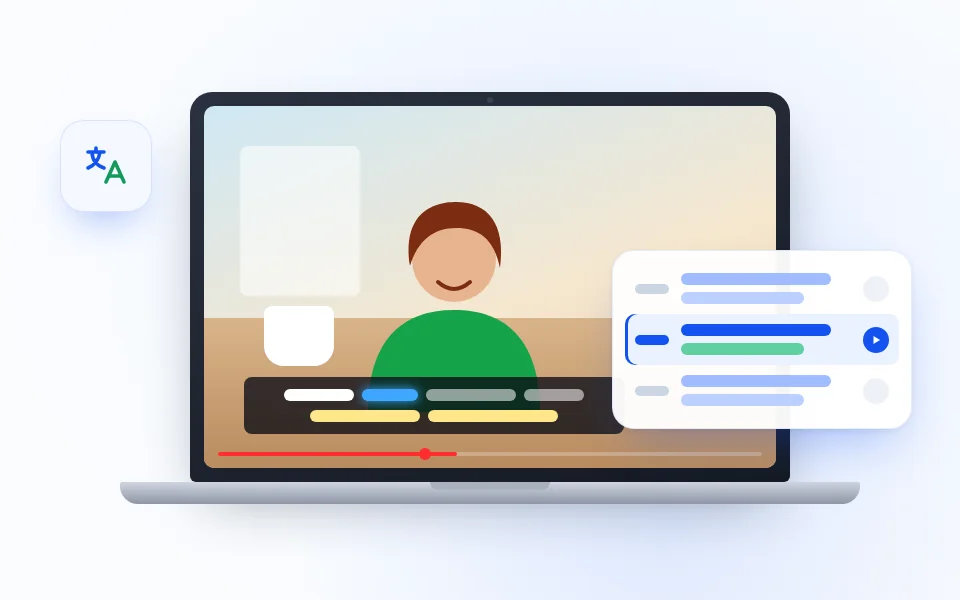
When a caption track is available, open its list to search a line and replay its timestamp. Hear the spoken phrase again while keeping both written versions nearby.
MAKE BOTH LINES USEFUL
Read for meaning, then check the source
Bilingual subtitles help when you want to understand a video without losing the original phrasing. Use the two lines as a reading aid; a caption track also lets you search its list and replay a timestamp, while voice mode follows audio from the moment it starts.
USE CASES
Where bilingual subtitles earn their space
The extra line is most useful when the exact wording matters. Keep both languages visible for these moments, then switch to a simpler view whenever you prefer.
Practice with natural speech
Listen to a phrase, read the original, and use the translation to confirm its meaning. Replay a captioned line to connect vocabulary with the way the speaker actually says it.

Check a technical explanation
A translated sentence can make a lesson easier to follow, while the source line preserves product names, formulas, and terminology you may need in your own notes.
Keep a speaker’s wording
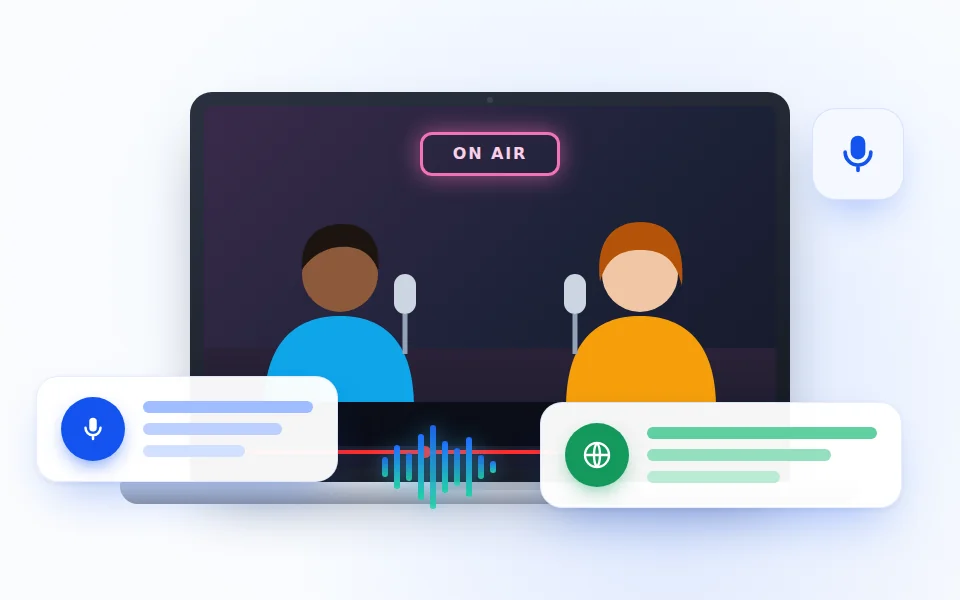
When a guest uses an idiom or a name, compare both lines before paraphrasing it. The original stays available even when the translation is your main reading language.
Follow international live events
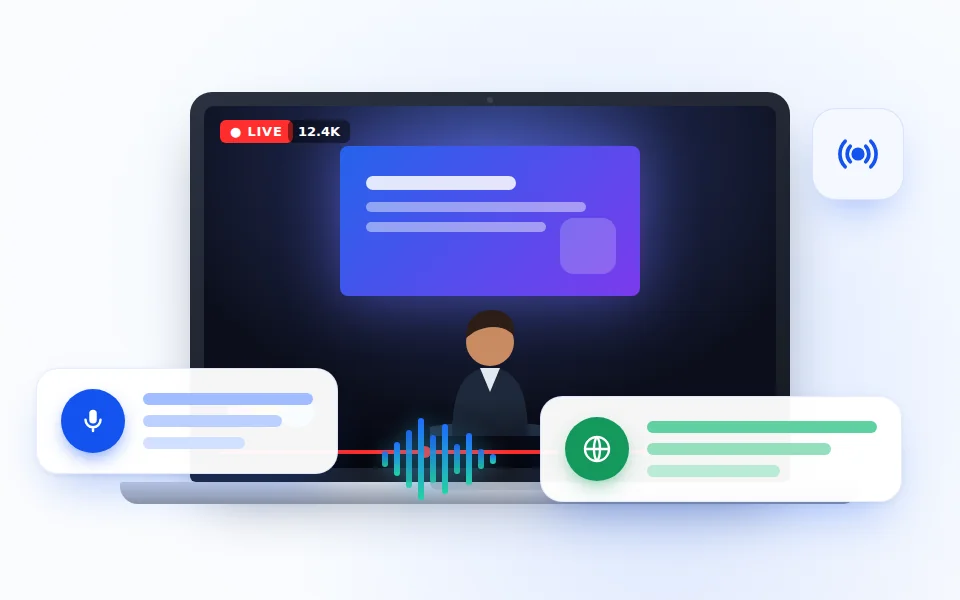
Keep the speaker’s language beside your translation during a keynote or live interview. The original helps preserve names, slogans, and short answers that a translated line may flatten.
BILINGUAL SUBTITLES · YOUTUBE
Turn watching into active listening
Try one pass with both lines on screen. Follow the translation for the overall idea, then use the source line when a phrase catches your ear. On a captioned recording, the timed list can take you back to that exact part of the video.
For a quick watch, simplify the layout to translation only. For study or note-taking, bring the original back and compare the two lines side by side as the video continues.
Explore YouTube translationCOMMON QUESTIONS
YouTube Bilingual Subtitles FAQ
Can YouTube show two subtitle languages at once?
YouTube's own player generally displays one caption language at a time. MeeLang adds a view that pairs the original text with its translation.
Can I change which subtitle appears first?
Yes. MeeLang lets you place the translation above or below the original, or display the translation by itself.
Do bilingual subtitles work in fullscreen?
MeeLang's subtitle overlay appears inside the YouTube player and remains available in fullscreen.
Can I use bilingual subtitles if a video has no captions?
When there is no usable caption track, MeeLang can recognize the playing audio and show bilingual subtitles from that point onward. Voice mode cannot recover earlier speech, and its recognized wording and timing may differ from a prepared caption track.
Can I download bilingual YouTube subtitles?
With a caption track loaded, copy or download its available subtitle text from the caption list. Voice-recognized lines can be exported from the full view during the running session. Review the original audio before relying on a translation as an exact quote.
Are bilingual subtitles useful for learning English?
They can help you compare a spoken line with its translation. Use the original to notice wording and replay a line for listening practice; verify unfamiliar expressions in context.
Can I hide the original line when I just want the translation?
Yes. Keep both lines for study or terminology checks, then switch to a translation-only layout when you want a less crowded player.
Can I replay a bilingual subtitle line?
With an available YouTube caption track, open MeeLang’s timed list and select the line you want to hear again. Its original and translation stay together for review.
Only one subtitle line is visible
Open MeeLang’s display settings and choose the bilingual layout rather than translation-only. If the player is narrow, reposition or resize the subtitle view so both lines fit.
The source text differs from what I hear
A creator or auto-generated caption track may omit, simplify, or mistime speech. With no usable track, live voice mode recognizes the audio. Replay the moment and compare the source before relying on a name, number, or quote.
The translation does not update after changing language
Select the target language in MeeLang and allow the current line to finish processing. If older lines remain in the previous language, restart the subtitle session at the current playhead.
Read both languages on your next video
Add MeeLang to desktop Chrome and follow the original and translation together on YouTube.
Add to Chrome