WEBEX TRANSCRIPTION
Webex Transcription
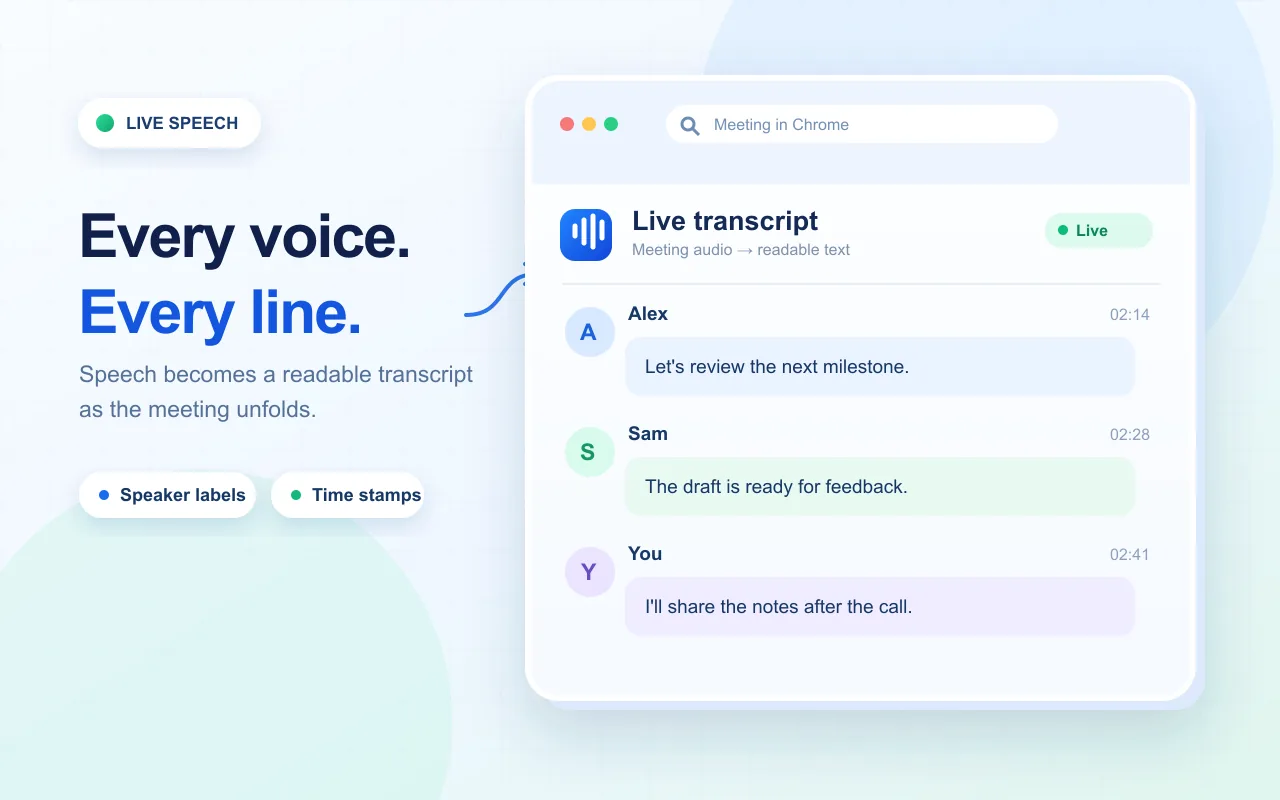
Turn a Webex web meeting into text while people are speaking. MeeLang captures meeting audio in Chrome and shows live lines in a transcript view, with translation beside the original when you need it.
For the Webex web client in Chrome · No meeting bot
THE QUICK ANSWER
How can I transcribe a Webex meeting?
Join the meeting in the Webex web client using Chrome, then start MeeLang. The extension listens to the meeting audio and turns speech into live text. You can read the transcript while the meeting is happening and keep earlier lines in the full subtitle window.
MeeLang is useful when you want a personal live transcript without asking the host to configure a recording workflow. It does not add a participant to the call. Speaker diarization distinguishes voices in meeting audio and labels their contributions for later review.
HOW IT WORKS
How to transcribe a Webex web meeting
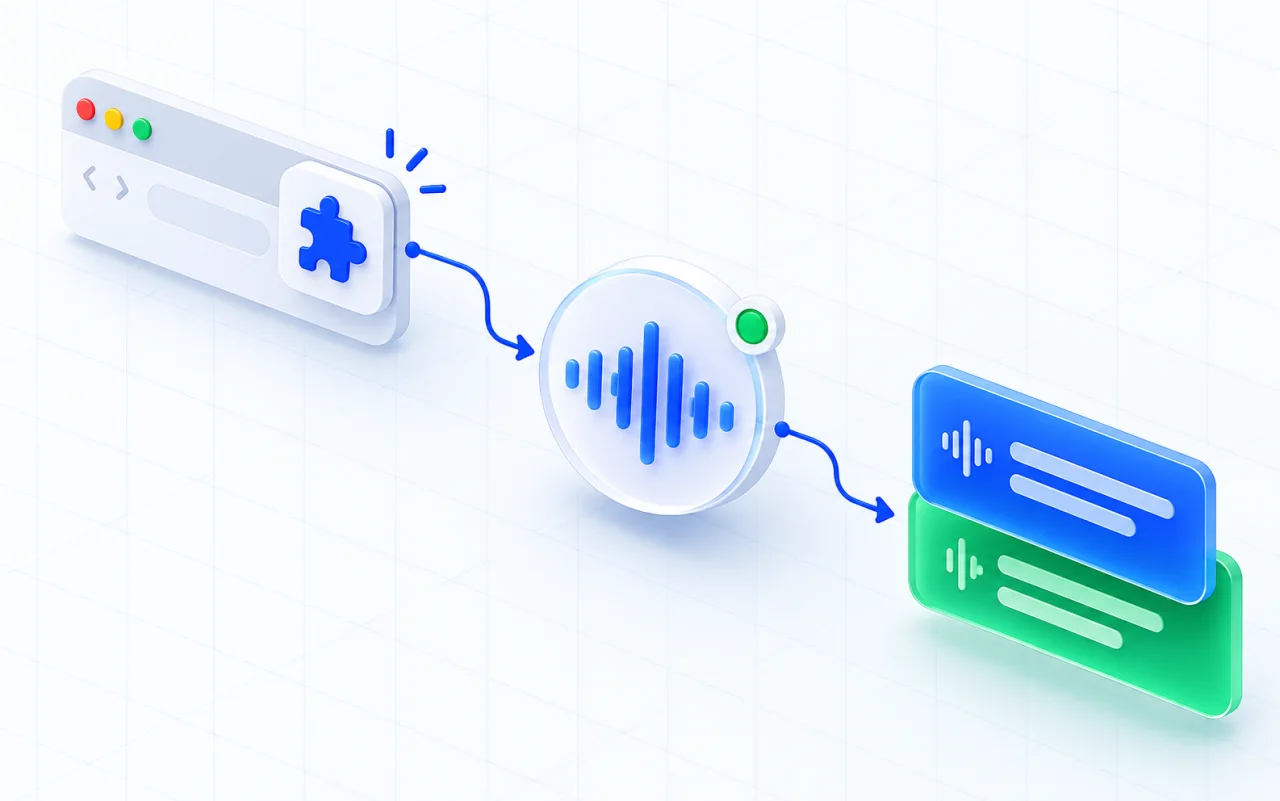
Join the Webex web client
Open the Webex meeting in Chrome and join from the browser.
Choose your language
Start MeeLang and choose the language you want to read.
Review your meeting
Open the full subtitle view to review lines or export your transcript.
BUILT FOR WEBEX IN CHROME
A transcript you can revisit
The compact view keeps the current line visible over the call; the full view gives you room to scroll back through the conversation. Speaker labels help you follow contributions, and your own captured speech is marked as “You”.
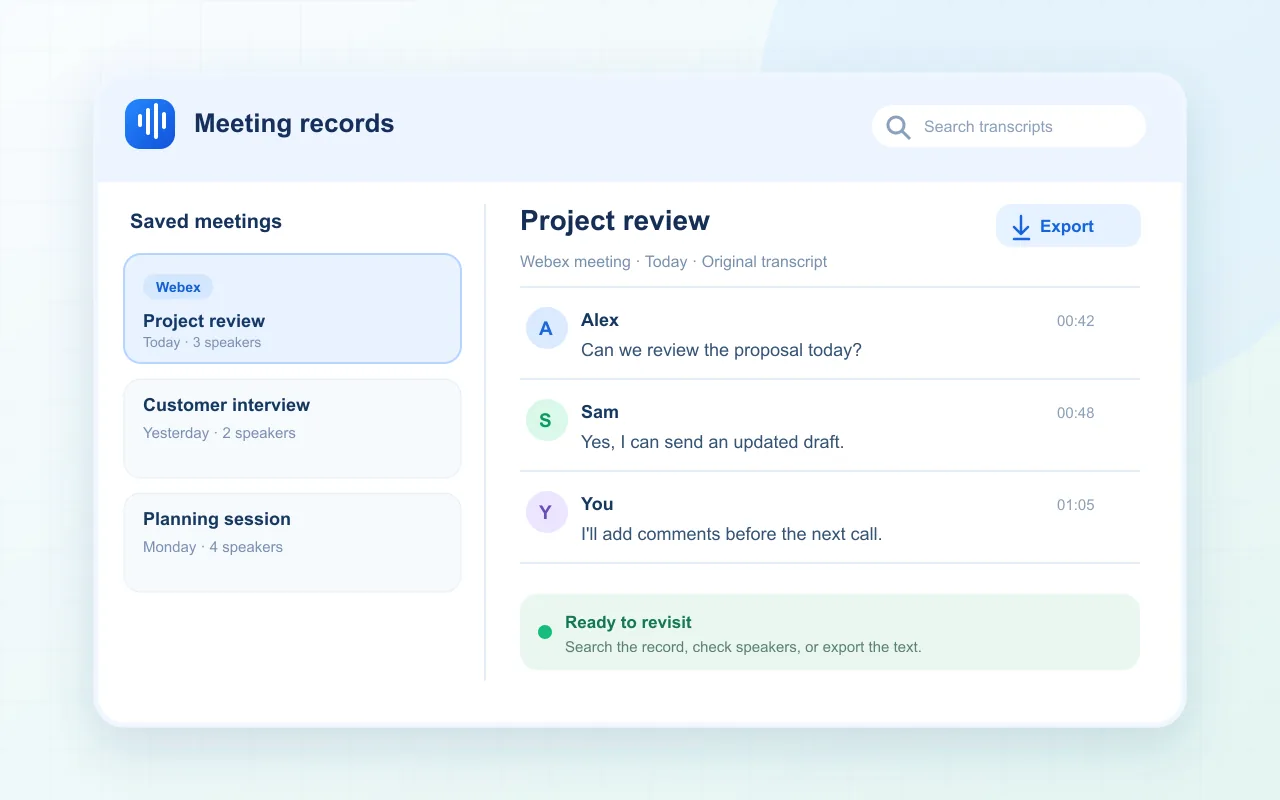
MeeLang stores meeting records in your browser profile. In the Meetings list, search across original and translated text or filter meetings by speaker label; open a record to review and export its lines. Speech text is processed by the service for transcription and translation, so review the privacy policy and your organization’s meeting rules before using it for sensitive calls.
A USEFUL WEBEX TRANSCRIPTION WORKFLOW
Set up the transcript before the discussion starts
MeeLang can only transcribe the speech it captures while the extension is running. A short check before the agenda begins helps avoid gaps in an interview, training, or customer call.
CHOOSE THE RECORD YOU NEED
Personal transcript or organization-managed record?
Use MeeLang when you want live bilingual reading and a transcript in your browser. If your team requires a centrally managed or organizer-owned record, follow the transcription and retention process approved for your Webex organization.
| Your need | Practical choice |
|---|---|
| Follow speech live in another language | MeeLang pairs recognized speech with a translation in your browser. |
| Revisit the text after the call | Open the MeeLang meeting record in the same browser profile and review or export it. |
| Create an official shared company record | Check your organization’s Webex and retention policies; a personal browser transcript may not meet that requirement. |
COMMON QUESTIONS
Webex Transcription FAQ
Does Webex transcription work in the desktop app?
MeeLang is a Chrome extension and captures the Webex web client in Chrome. It does not capture the native desktop application.
Does MeeLang create a transcript if I do not record the Webex call?
Yes. It creates text from meeting audio while MeeLang is running in your browser; it does not require a Webex cloud recording.
Can I export a Webex transcript?
You can export text from the MeeLang transcript view. Check names, numbers, and key decisions before using the exported text as an official record.
Where is my MeeLang transcript stored?
Meeting records are stored locally in your browser profile. Speech sent for transcription or translation is processed by the service; local storage does not mean offline processing. See the privacy policy.
No transcript lines appear
Confirm you joined the Webex web client in Chrome, MeeLang is running on the meeting tab, and meeting audio is playing. Reload the meeting tab if the Webex client or extension was started before the meeting interface finished loading, then start MeeLang again.
Only part of the meeting is in the record
The record begins when MeeLang starts capturing. It cannot recover speech from before that point, while the tab was closed, or during a period when the audio source was unavailable.
Names or technical terms look wrong
Speech recognition can mishear names, acronyms, overlapping voices, or low-volume audio. Check the original line and listen to the meeting recording if your organization has one before copying the transcript into formal minutes.
Follow Webex in the language you know
Start MeeLang in Chrome and keep the conversation in view.
Add to Chrome