BILINGUAL ZOOM TRANSCRIPT
Zoom Bilingual Transcript
Keep the words people used alongside the translation that helped you follow the call. MeeLang creates a bilingual transcript in your browser while you join Zoom in Chrome.
Original + translation · Meeting search · Stored in your browser

THE QUICK ANSWER
Read the meaning and check the original wording
A translated line helps you keep up, but you may want to verify a product name, a number, or the exact phrasing behind a decision. MeeLang keeps recognized speech and its translation together in the Zoom transcript, with speaker labels to help you follow the conversation.
During the meeting, scroll through the full subtitle window to revisit lines. Afterward, open MeeLang's Meetings page in the extension options to search across saved records, filter meetings by platform, open a transcript, and copy or export its text. Records stay in the current Chrome profile and do not automatically transfer to another profile or device. Use Zoom's web client in Chrome; the desktop and mobile apps are not supported.
HOW IT WORKS
How to get a bilingual Zoom transcript

Join Zoom in Chrome
Open the invitation and select Join from your browser to enter the Zoom web client.
Choose your reading language
Start MeeLang and choose a target language. Original speech and translation appear together as the meeting continues.
Review and export
Open the full view to scroll through this session. Use the Meetings page to search saved records, then export the transcript.
FROM CALL TO FOLLOW-UP
Useful when the exact details matter
USE CASES
Review the original without losing the translation
A bilingual transcript is useful when the exact wording may matter after a multilingual Zoom call.

Cross-team project reviews
Share both language versions with colleagues who missed the Zoom call, with the source wording kept beside the translated decision.
TEAM DECISIONS
Customer and partner calls
Check a request, price, or commitment against the original line before you send a follow-up.
CLIENT FOLLOW-UP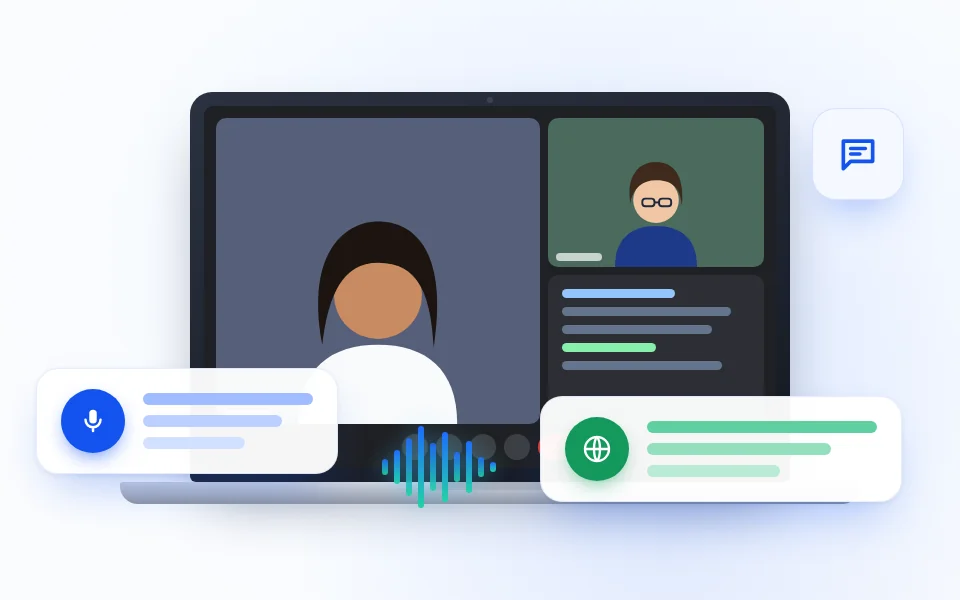
Interviews and research
Revisit a response in both languages when you are writing notes or comparing feedback after the session.
INTERVIEW REVIEW
Training and handovers
Copy the relevant lesson or handover detail into your notes and retain the source wording for colleagues who know that language.
LEARNING REVIEWWHAT THE RECORD CAN AND CANNOT TELL YOU
Check the transcript before relying on it
COMMON QUESTIONS
Zoom Bilingual Transcript FAQ
What is a bilingual Zoom transcript?
It is a text record that pairs recognized original speech with its translation. MeeLang displays both languages together in its full subtitle window.
Can I check the translation against the original?
Yes. The paired lines let you compare names, numbers, and phrasing with the original speech.
Where does MeeLang save my transcript?
The record is stored locally in the browser profile you used for the meeting. You can review, export, or delete it there.
Does this work in the Zoom desktop app?
MeeLang is a Chrome extension for the Zoom web client. Join from your browser to use the bilingual transcript.
Can MeeLang distinguish speakers in the Zoom transcript?
Yes. MeeLang uses speaker diarization to distinguish voices in meeting audio and label their contributions in the bilingual transcript.
Will my Zoom transcript appear on another device?
Not automatically. MeeLang stores meeting records in the current Chrome profile. Export the text if you need a copy outside that profile.
Keep both languages in your Zoom notes
Read the translation during the call and return to the original wording when you review the transcript.
Add to Chrome