GOOGLE MEET BILINGUAL TRANSCRIPT
Google Meet Bilingual Transcript
Follow a multilingual meeting live, then revisit what was said with the source speech and its translation together. MeeLang keeps the transcript in your browser so you can search, review, or export it after the call.
Chrome extension · No meeting bot · Start before the conversation

THE QUICK ANSWER
What is a bilingual Google Meet transcript?
A bilingual transcript keeps the words spoken in a Google Meet call beside their translation. You can check the original phrasing, follow a discussion in your preferred language, and return to details without relying on memory or switching between separate documents.
MeeLang captures and translates meeting speech while it is running in Chrome. The transcript is stored in the browser profile used for the call. It does not import a meeting that ended before MeeLang was enabled, and it is separate from a transcript Google may save to Drive.
HOW IT WORKS
How to get a bilingual Google Meet transcript

Open Meet in Chrome
Install MeeLang and start it before the discussion you want to capture. Speech from before the extension starts cannot be recovered.
Choose the language you want to read
Select a target language. MeeLang displays live subtitles and records the source and translated text as the conversation continues.
Review the record after the call
Open the Meetings list in the same browser profile. Search matches text in either language; the speaker filter narrows the list to meetings that include that speaker. Open a result to review or export the full bilingual record.
WHY KEEP BOTH LANGUAGES
Keep the context with every line
Original and translation together
Each transcript entry pairs the recognized source text with its translation, so names, technical terms, and ambiguous phrases are easier to verify.
Follow the conversation by speaker
MeeLang can distinguish speakers in meeting audio and label their contributions. When Google Meet captions provide participant names, those names can also appear with the transcript. In the Meetings list, filter for records that include a speaker.
Search and export
Use the search field in MeeLang’s Meetings list to find a meeting by words in its original or translated transcript, then export that meeting’s text for your notes or handoff. The transcript remains under your control in the browser where MeeLang captured it.
TAKE YOUR NOTES WITH YOU
What you can do with the transcript
Open the saved meeting record to read each captured turn, with its speaker and time where available. Use the export control to download a plain-text copy containing the recognized original and MeeLang translation. Keep the file with your project notes, or use it to prepare a follow-up in either language.
Export only the meetings you need, and follow your organization's consent and retention policies before sharing transcript text.
USE CASES
Useful after the call, not just during it
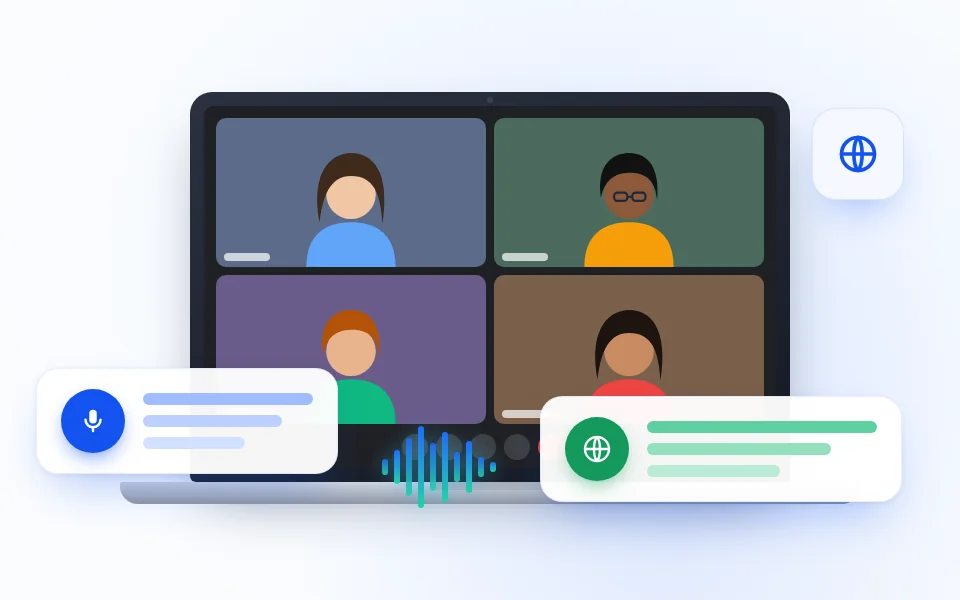
Share a decision with another office
Keep the original wording beside the translation when you send a project update to teammates who were not in the Meet call.
TEAM DECISIONS
Check a client commitment
Use the search field in MeeLang’s Meetings list to find a meeting by a date, requirement, or next step mentioned in either language. Open the bilingual transcript to verify the original wording before quoting it in a follow-up.
CLIENT FOLLOW-UP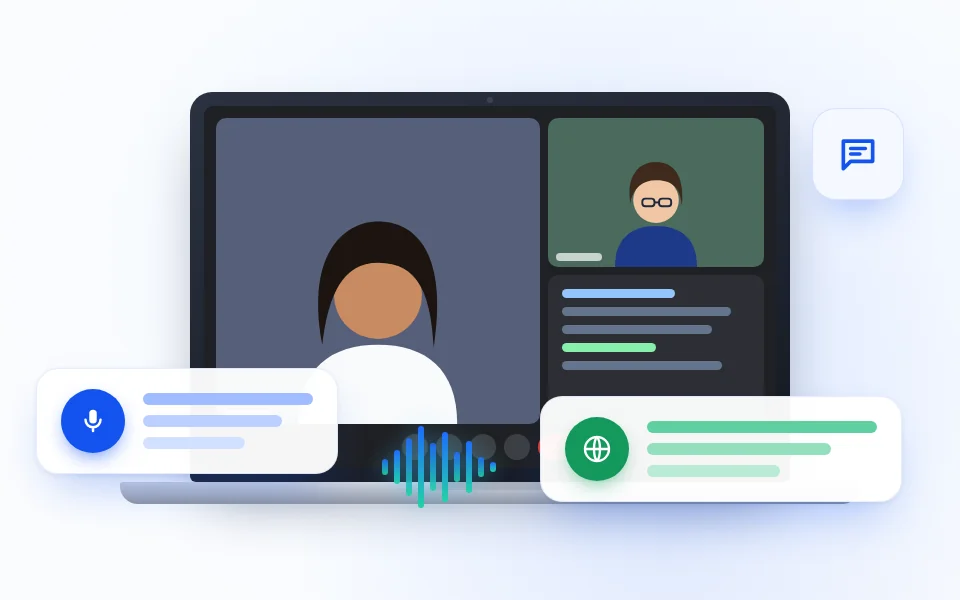
Prepare for an interview
Return to each speaker’s answers in both languages when you are preparing follow-up questions or comparing candidates with teammates.
INTERVIEW REVIEW
Review a class or training session
Revisit the instructor’s explanation and compare both languages while reviewing notes after a class, workshop, or onboarding session.
LEARNING REVIEWCHOOSE THE RECORD YOU NEED
Bilingual transcript or live captions?
| Need | MeeLang live captions | MeeLang meeting record |
|---|---|---|
| Best for | Following the discussion as people speak | Reviewing the conversation after the call |
| What you read | Current original line and translation | Captured lines with speaker, time, original, and translation |
| Where to open it | On the Meet page while MeeLang is running | MeeLang meeting records in the same browser profile |
Google Meet also offers its own transcription on eligible accounts. That transcript is managed in the organizer's Google Drive. MeeLang's bilingual record is separate and stays in the browser profile that captured it. See Google's transcript instructions.
A NOTE ABOUT STORAGE
Where is the transcript saved?
MeeLang stores its meeting records locally in your browser profile, not in the meeting organizer's Google Drive. Export important records before clearing extension data or switching browser profiles. The text is processed by MeeLang to provide transcription and translation; local storage does not mean offline processing.
COMMON QUESTIONS
Google Meet Bilingual Transcript FAQ
Can Google Meet make a transcript in two languages?
Google Meet's own transcript and translation options are separate. MeeLang pairs recognized speech with its translation in a bilingual record stored in your browser.
Can I get a transcript after a meeting ends?
MeeLang can only record speech captured while it is enabled. It cannot recover an earlier call; ask the organizer whether a Google Meet transcript was saved to Drive.
Does the transcript include what I say?
MeeLang can translate and record your own speech as well as other participants. When you mute yourself in Meet, it stops listening to your microphone.
Can I search or export the transcript?
In MeeLang’s Meetings list, search across a meeting’s original and translated text to find the relevant meeting, then open its record to review or export the bilingual text. Search filters meetings; it does not hide individual transcript lines.
Can MeeLang transcribe a Google Meet recording after the call?
No. This page describes speech captured live while MeeLang is enabled. It does not upload or transcribe an older recording.
What if the transcript is missing a speaker name or a word?
Speaker labels and recognition depend on the captured meeting data and audio. Check the source line against your own notes before sharing a quote or decision.
Keep the original and translation together
Start MeeLang in your next Google Meet and revisit both sides of the conversation afterward.
Add to Chrome