BILINGUAL WEBEX TRANSCRIPT
Webex Bilingual Transcript
Review what was said and how it was translated in one place. MeeLang pairs original and translated lines from a Webex web meeting, so you can check meaning without losing the source wording.
Original + translation · Review in your browser
THE QUICK ANSWER
What is a bilingual Webex transcript?
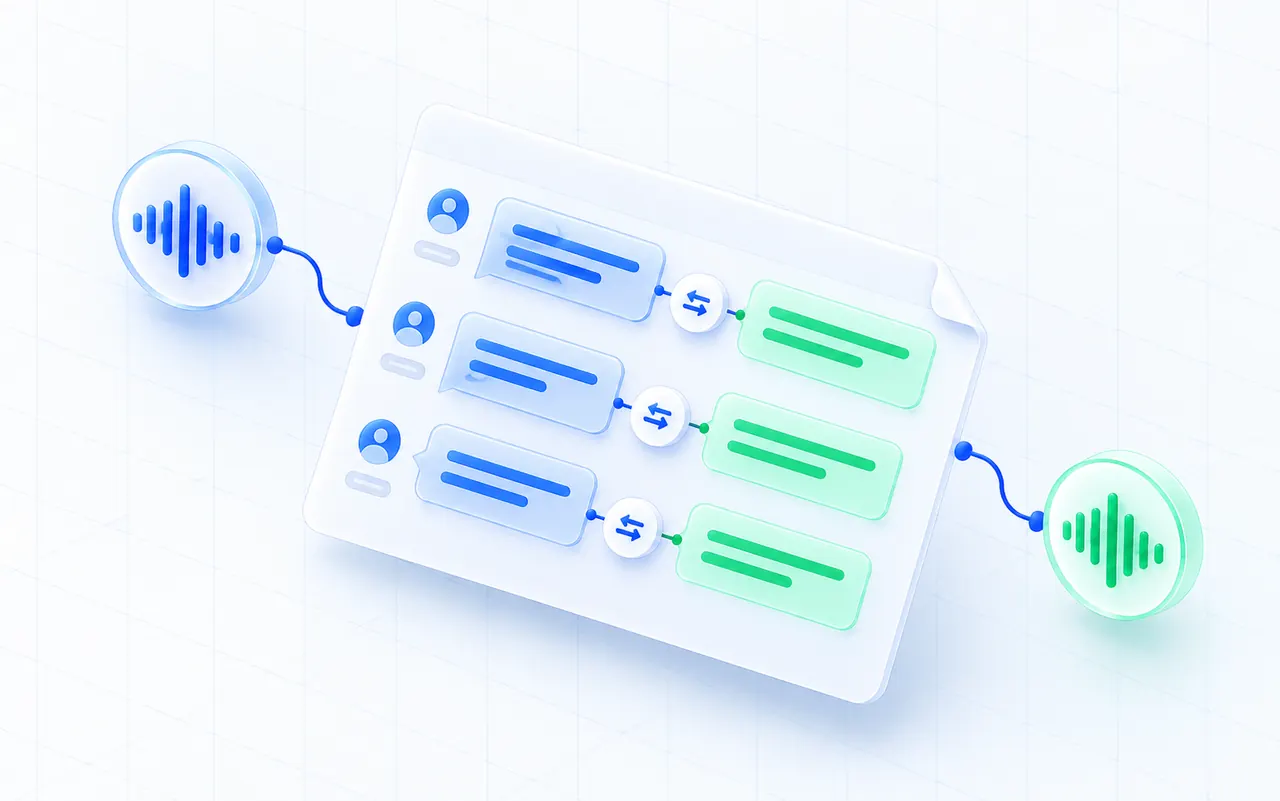
A bilingual transcript keeps the words spoken in the meeting alongside their translation. That makes it easier to check a technical term, quote the original wording, or share a readable follow-up with a colleague who prefers another language.
With MeeLang, join the Webex web client in Chrome and start live subtitles. Speaker diarization distinguishes voices in the meeting audio, and the full view lets you scroll through their contributions. The transcript includes speech captured while the extension is running.
HOW IT WORKS
How to create a bilingual Webex transcript
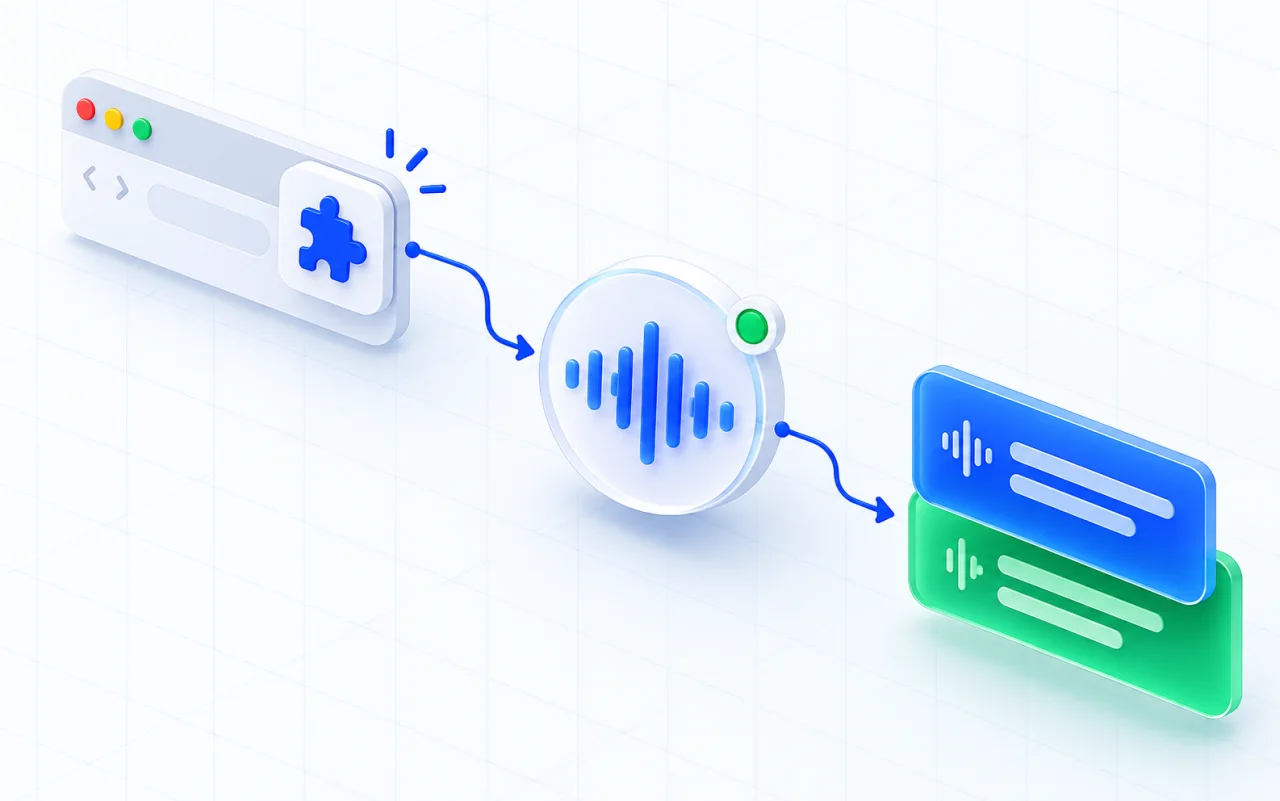
Join the Webex web client
Join the Webex web meeting in Chrome.
Choose your language
Choose your reading language and run MeeLang during the call.
Review your meeting
Review or export the original and translated lines together.
BUILT FOR WEBEX IN CHROME
Use the original to verify the translation
Translations help you follow the discussion, while the source line gives you context to verify an expression. This is especially useful for names, product terminology, decisions, and action items that may need a second look after the meeting.
Use search in the Meetings list to find a phrase in either the source or translated text, then open the record to review and export its lines. Filter the meeting list by speaker label to find records containing that speaker. MeeLang stores records in the browser profile, while speech text is processed by the service.
FROM WEBEX CALL TO BILINGUAL RECORD
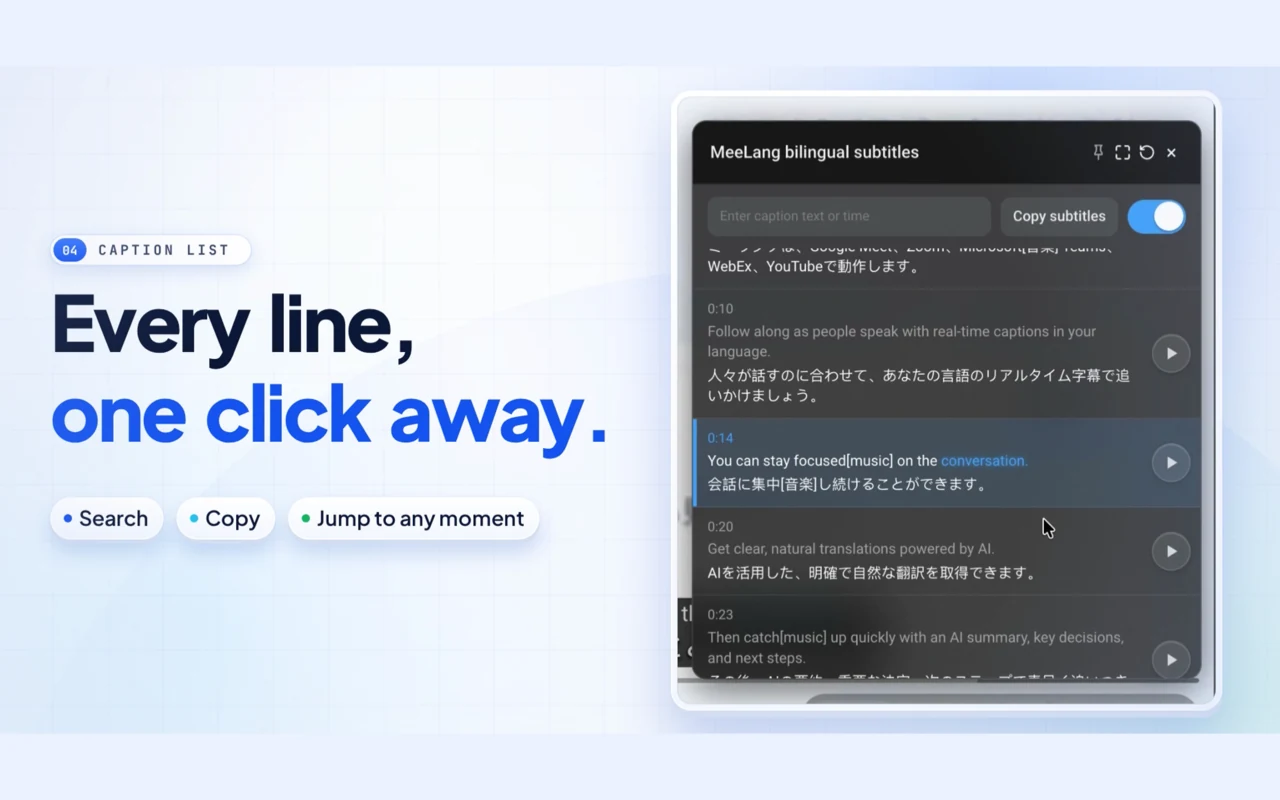
Keep the source line beside its translation
A bilingual transcript is most useful when you can trace a translated sentence back to the words that produced it. Set the reading language before the discussion, then review both lines together after the call.
USE CASES
When a bilingual Webex transcript helps after the call
Use the paired source and translation when someone needs the exact context behind a team decision, customer commitment, interview answer, or training note.
Share a team decision
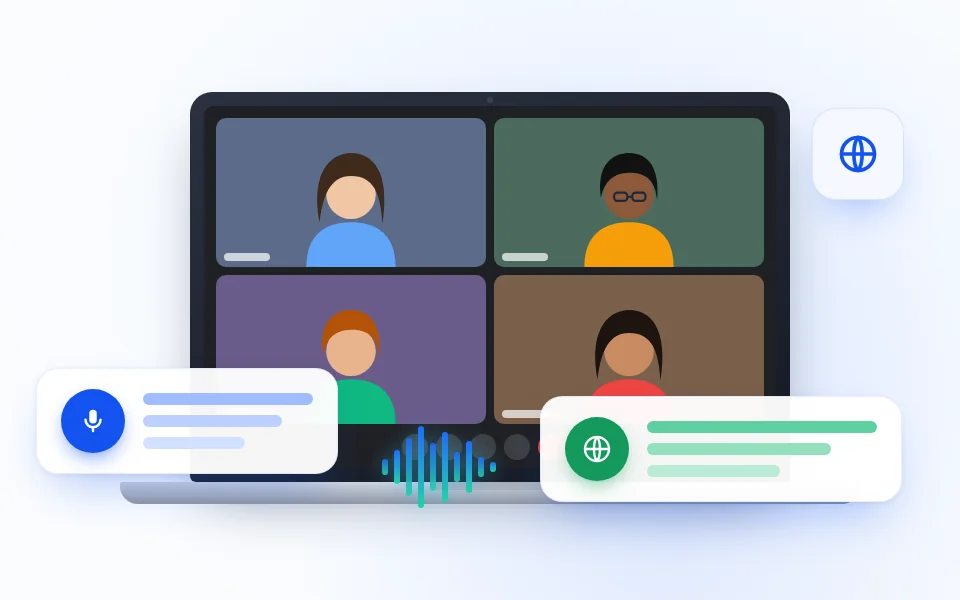
Send the source wording with the translation when teammates who missed the Webex call need the exact context behind a project decision.
TEAM DECISIONS
Check a client commitment
Search the saved Webex meeting record for a date, requirement, or next step, then compare both languages before quoting the commitment.
CLIENT FOLLOW-UP
Review an interview
Revisit each speaker’s answers in both languages when preparing follow-up questions or comparing feedback with your team.
INTERVIEW REVIEW
Review a class or training session
Compare the instructor’s explanation with its translation while reviewing notes after a Webex class, workshop, or onboarding session.
LEARNING REVIEWWHEN BILINGUAL FORMAT HELPS
Use both columns for review, not as a substitute for judgment
Keeping source and translation together is useful for multilingual project reviews, customer conversations, and interviews where a phrase may need a closer check. Speaker labels help you follow each contribution; inspect the source before sharing decisions or quotations.
| Your need | Practical choice |
|---|---|
| Need to understand the call as it happens | Read the translated subtitle while retaining the original line for context. |
| Need an exact quote or technical term | Verify the source wording and correct any recognition errors before reuse. |
| Need a certified or legal translation | Use a qualified translator and your organization’s approved review process. |
COMMON QUESTIONS
Webex Bilingual Transcript FAQ
Can I see the original and translation at the same time?
Yes. MeeLang pairs the source text and its translation in the subtitle view and meeting record.
Can I create a transcript after the Webex meeting?
MeeLang records speech while it is running in the browser. It cannot recover speech from a call that ended before you started it.
Can I search or export my bilingual transcript?
Search the Meetings list across original and translated text, or filter meeting records by an available speaker label. Open a record to review and export its text. Confirm important wording and attribution against the source before sharing.
Does bilingual transcription work in Webex desktop?
Use the Webex web client in Chrome. MeeLang does not capture the native desktop app.
A line has no useful translation
Check that the target language is set correctly and that the source text was recognized. Short fragments, names, and speech that changes languages can be hard to translate cleanly; compare neighboring lines for context.
Speaker attribution is uncertain
MeeLang uses speaker diarization to distinguish voices and label their contributions. If a line seems attributed to the wrong speaker, check the conversation context or an approved recording before sharing a quotation.
The transcript does not include the beginning
MeeLang only records while it is enabled and capturing the Webex browser audio. Start before the agenda begins; enabling it later does not backfill earlier speech.
Keep the source and meaning together
Use a bilingual transcript to review a Webex conversation after the call.
Add to Chrome