MICROSOFT TEAMS LIVE CAPTIONS
Microsoft Teams Live Captions
Follow a Teams conversation as it happens with the original speech and its translation on screen. MeeLang adds a personal subtitle view to Teams on the web in Chrome.
Live bilingual subtitles · Personal browser view
THE QUICK ANSWER
Read Teams captions while people are speaking
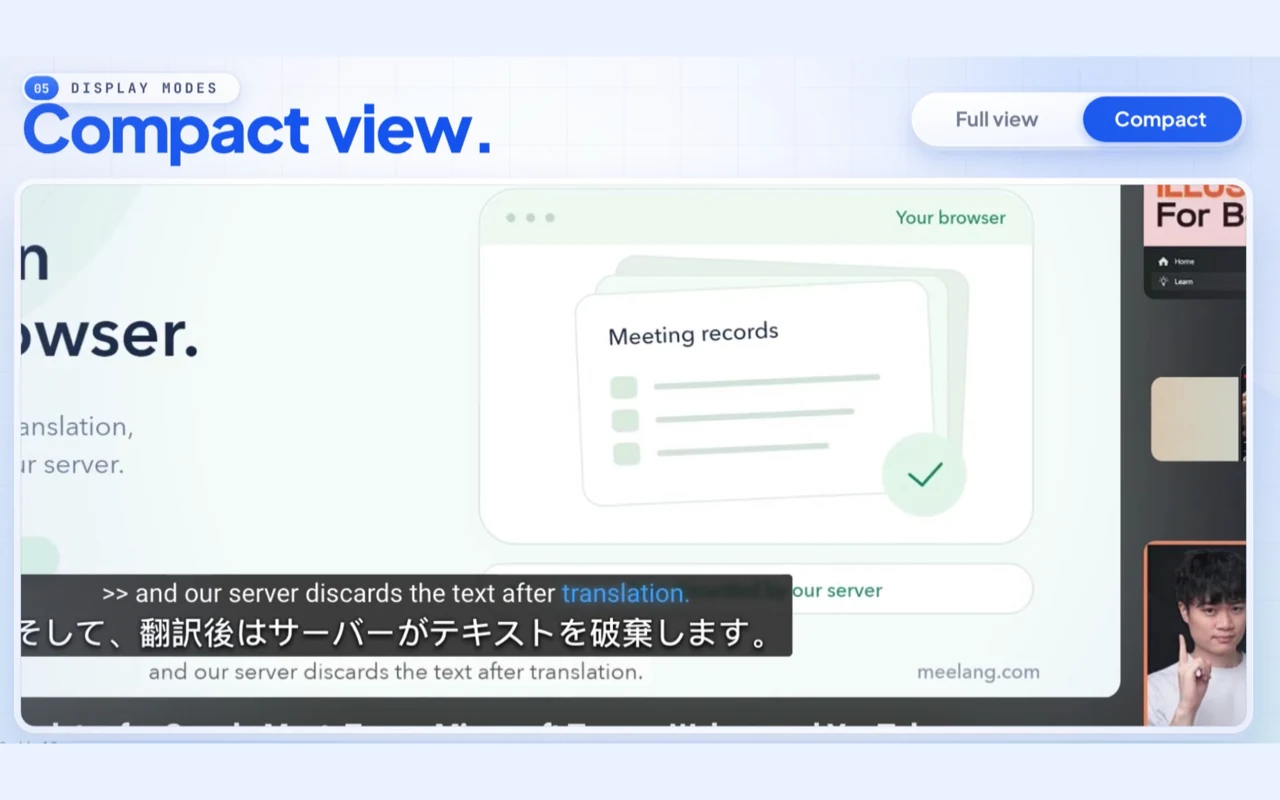
Live captions are useful when you need to understand a sentence before the meeting moves on. MeeLang listens to the audio in a Teams web meeting and shows the original and translated line as captions in your browser.
Use compact captions over the meeting when you want to keep the speakers visible, or open the full subtitle window to see more context. The captions are shown to you in Chrome; other meeting participants do not need MeeLang.
HOW IT WORKS
How to turn on Microsoft Teams live captions
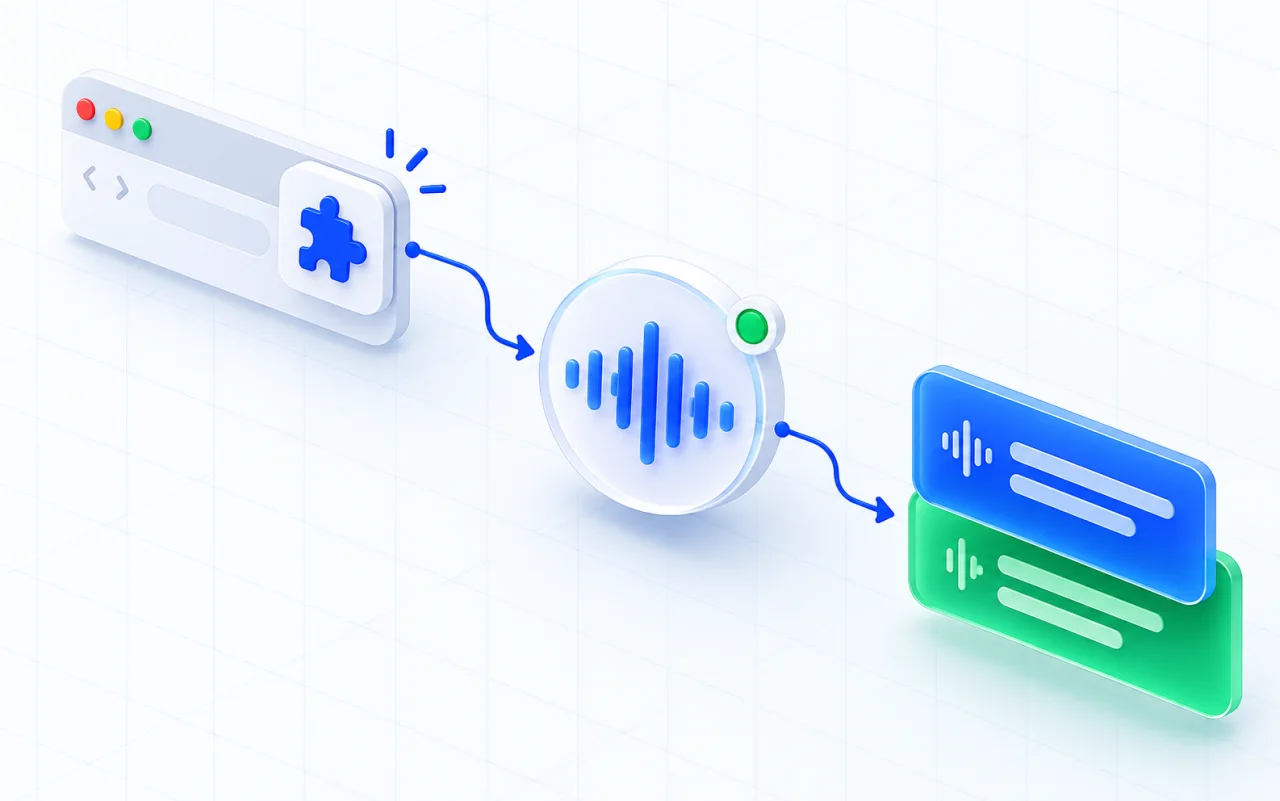
Join the meeting in Chrome
Use Teams on the web. MeeLang does not support the Teams desktop or mobile apps.
Pick a subtitle language
Open MeeLang and choose the language you want to read.
Follow the captions
Choose compact captions or the full subtitle window while the meeting continues.
MICROSOFT TEAMS
Choose how live captions appear
Compact overlay
Keep the current bilingual line near the meeting content and adjust its position to suit your screen.
Full subtitle window
Open the larger view to read recent lines and give longer translations more room.
Captions for your own speech too
MeeLang can include your speech when your microphone is active and pauses listening to your microphone when Teams shows it as muted.
SET UP BEFORE YOU SPEAK
A short checklist for Teams live captions
MeeLang listens to audio playing in the Teams web tab and renders its own subtitle overlay. It does not read Teams’ caption panel, so the meeting audio path needs to be active.
Join a Teams meeting in Chrome
Use Teams on the web at teams.microsoft.com or teams.cloud.microsoft for work and school, or teams.live.com for personal meetings. MeeLang does not run in the desktop or mobile apps.
Confirm audio reaches the browser tab
Make sure the meeting is connected and the tab is not muted. MeeLang processes meeting audio rather than reading the Teams caption panel.
Choose the language you want to read
Select a target language in MeeLang. It detects the spoken language and can show the original line with its translation.
Choose compact or full view
Keep compact captions over the call when you need the meeting visible, or open the full subtitle window to scroll back through lines from the active session.
USE CASES
When Teams live translated captions help most
Use live captions when you need to follow and respond during a Teams meeting instead of waiting for a transcript afterward.
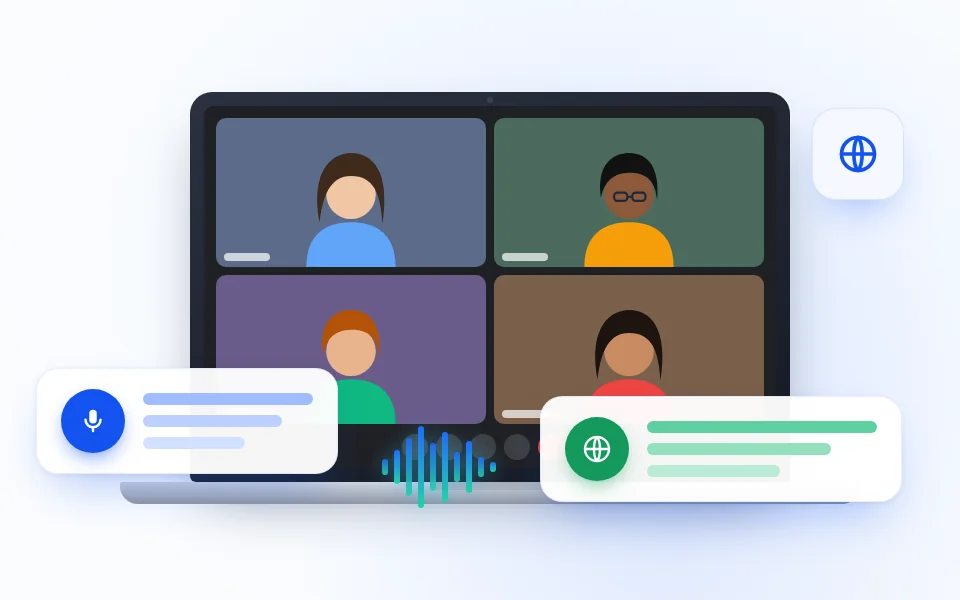
Follow a fast-moving team update
Read the current translated line while teammates share a launch change or project decision, then use the full window to check the previous turn.
TEAM UPDATES
Catch the right moment to ask a client
Catch an unfamiliar phrase during a client call and ask a useful follow-up before the conversation moves to the next topic.
CLIENT CALLS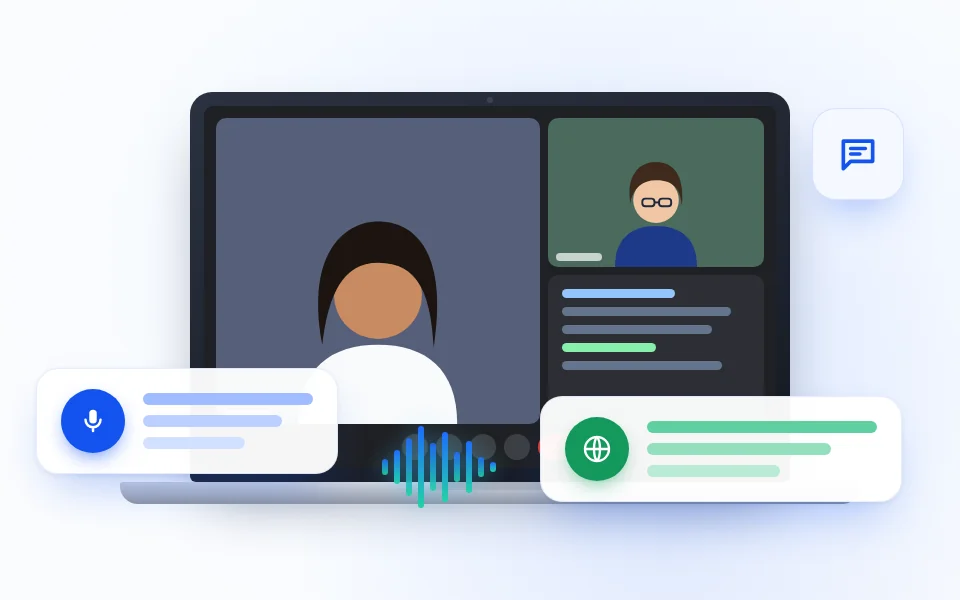
Prepare for an interview in another language
Keep the original answer and translation together when a technical term or short response could be read more than one way.
INTERVIEWS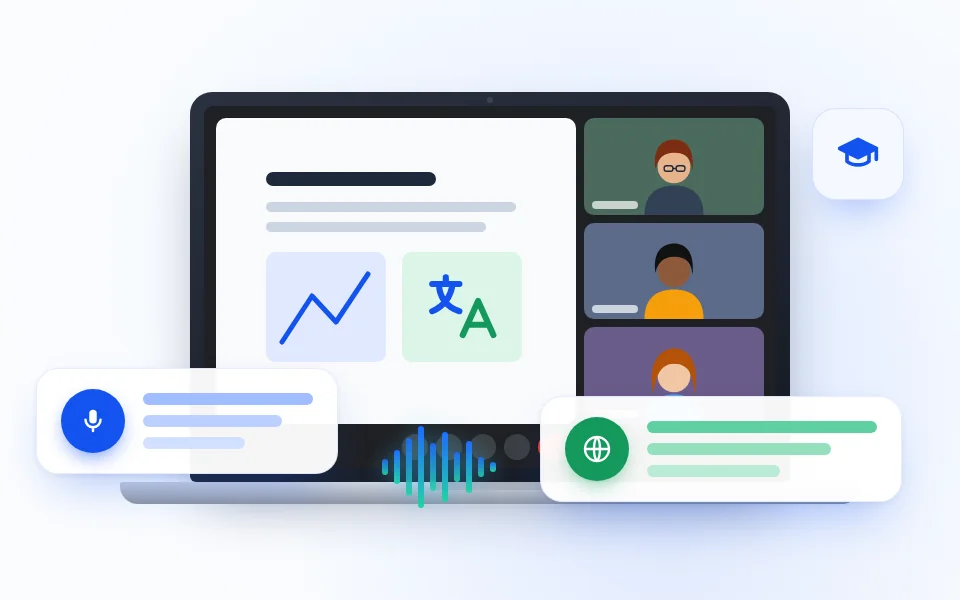
Follow a multilingual class or workshop
Read the instructor’s live translation while slides, examples, and learner questions move between languages in the same Teams session.
TRAININGDISPLAY OPTIONS
Choose the Teams caption view that fits the meeting
Compact overlay for presentations
Keep a single current subtitle near the Teams content when slides and speakers need most of your attention.
Full view for fast discussions
Open the larger subtitle window when you need more room for translated text or want to scroll back through the current conversation.
Original plus translation for learning
Seeing both lines can help you follow a colleague’s explanation and recognize familiar words in the source language.
CAPTION OR TRANSCRIPT?
Use live captions to follow; use a transcript to revisit
Live captions help you read while people are speaking. MeeLang also keeps captured lines in a browser meeting record for later review. Microsoft says built-in Teams live captions are not saved after a meeting; use Teams transcription or MeeLang when you need a record. See Microsoft’s live captions guide.
COMMON QUESTIONS
Microsoft Teams Live Captions FAQ
Does MeeLang work with Teams desktop?
No. Join the meeting in Teams on the web using Chrome to use the extension.
Do I need to turn on Teams’ built-in captions for MeeLang?
No. MeeLang creates its overlay from audio in the browser tab; it does not read Teams’ caption panel.
Are Microsoft Teams live captions saved after the meeting?
Microsoft says its built-in live captions are not saved. MeeLang can keep the lines it captured in the browser profile running the session.
Can I show the original and translation together?
Yes. MeeLang’s bilingual subtitle views can show the source line and translated text together.
Can other participants see my MeeLang captions?
No. The subtitle overlay is shown in your own Chrome browser; other participants do not need to install anything.
Teams’ own captions work, but MeeLang captions do not. Why?
MeeLang processes the audio playing in the browser tab; it does not read Teams’ built-in caption panel. Check that you joined in Chrome, the meeting audio is audible in the tab, and MeeLang is enabled.
Why is my own speech missing?
MeeLang uses the page’s microphone state and meeting audio. Confirm Teams has joined microphone audio and that you are not muted. If you just changed devices or joined audio, refresh the meeting tab and start MeeLang again.
Can MeeLang distinguish speakers in Teams live captions?
Yes. MeeLang uses speaker diarization to distinguish voices in Teams meeting audio and label their contributions.
Make the next Teams meeting easier to follow
Add your personal bilingual caption view to Teams on the web.
Add to Chrome