Help center
Support
Everything you need to get MeeLang running smoothly.
Quick Start
-
Install the extension from the Chrome Web Store. Click "Add to Chrome" — it takes seconds, no account required.
-
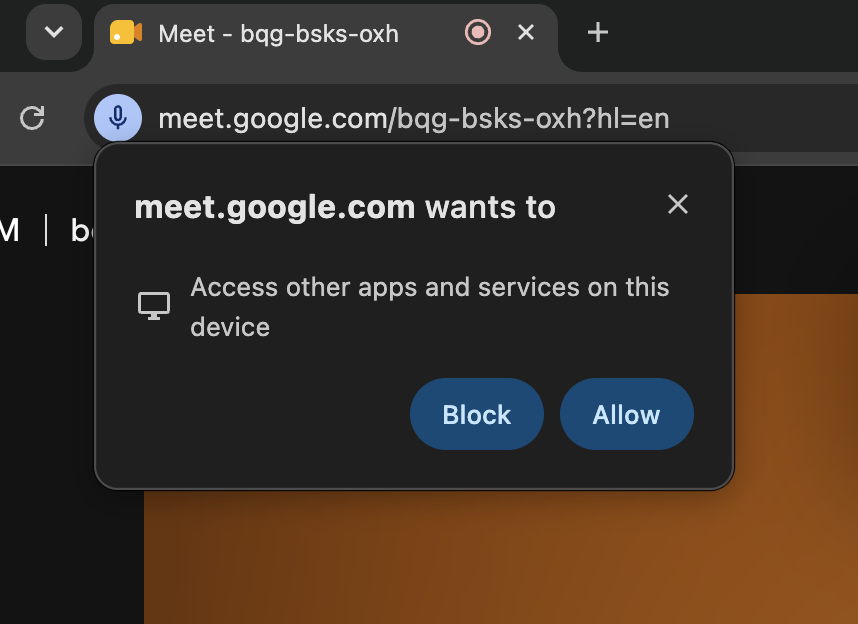
Allow access. The first time you join a Google Meet with MeeLang installed, Chrome asks to “Access other apps and services on this device”. Click Allow — MeeLang needs this permission to show subtitles in the meeting.
-
Sign in (Optional). Click the MeeLang icon in your toolbar, go to Settings, and sign in with Google for your 30 free translation minutes a month.
-
Join a meeting and enable translation. Open Google Meet, click the MeeLang icon in your toolbar, toggle translation on, and select your target language. Subtitles appear automatically.
Need the steps in more detail? The step-by-step setup guide walks through each one with screenshots.
Frequently Asked Questions
Which meeting platforms does MeeLang support?
MeeLang works in Google Meet and in the web versions of Zoom, Microsoft Teams, and Webex, as well as on YouTube. Desktop apps aren't supported yet — join the meeting in Chrome instead.
Which languages can MeeLang translate?
MeeLang supports 30+ target languages out of the box, including English, Chinese (Simplified and Traditional), Japanese, Korean, Spanish, French, German, Portuguese, Hindi, Arabic, Russian, Bengali, Vietnamese, Indonesian, Turkish, Thai, Polish, Italian, Dutch, Ukrainian, Czech, Hungarian, Romanian, Greek, Swedish, Danish, Norwegian, Finnish, Hebrew, Malay, Filipino, and Urdu. The source language is detected automatically.
How much does MeeLang cost?
MeeLang has a free tier: sign in with Google and you get 30 free translation minutes a month. The Pro plan is 600 minutes a month for $9.99/month.
Is my meeting data secure?
Yes. MeeLang sends contents to our translation backend over an encrypted connection. The backend processes them in memory and does not store your meeting content — only anonymous character count and duration metrics are recorded. Translation requests are forwarded to LLM providers. Read our full Privacy Policy for details.
Does MeeLang require an internet connection?
Yes. The extension needs to communicate with our translation backend to perform translations. An active internet connection is required for the service to work.
Does MeeLang offer a subscription?
Yes. Pro is $9.99 a month and includes 600 translation minutes plus AI meeting summaries. You upgrade from inside the extension.
Troubleshooting
Connection The extension says "Server not connected"
This usually means the MeeLang translation backend is temporarily unreachable. Check your internet connection first. If you're online, the backend may be undergoing maintenance — wait a moment and try again. If the issue persists, check our status page or contact support.
Permission Nothing appears in the MeeLang window
The window stays completely empty — no original text, no translation. That means MeeLang isn't receiving any speech from the tab.
-
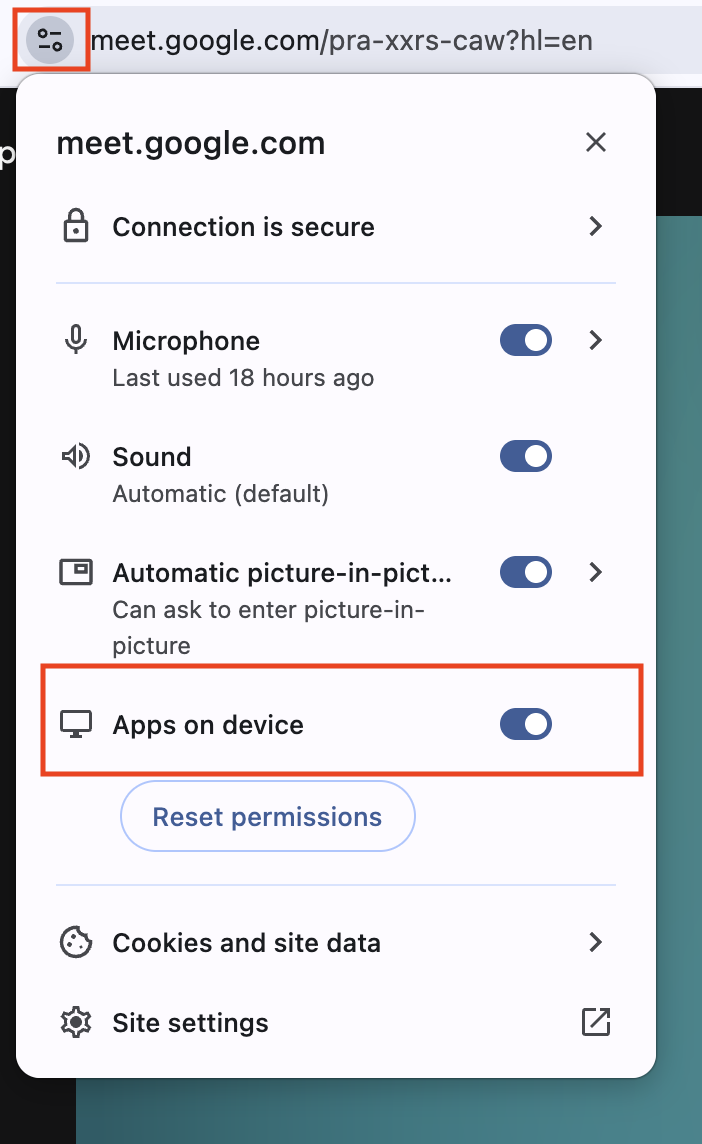
Check the permission. Click the View site info button to the left of the address bar and make sure Apps on device is switched on.
-
Reload and rejoin. Refresh the page and enter the Google Meet again so the permission takes effect.
Subtitles MeeLang isn't showing translated subtitles
Text shows up in the MeeLang window, but nothing is translated. Check these two things:
-
Check that translation is on. Click the MeeLang icon in your toolbar, make sure the translation toggle is on and a target language is selected.
-
Check that the tab is playing audio. MeeLang works from what it hears, so a muted meeting tab produces no subtitles.
Quota What should I do if I run out of quota?
If you're not signed in, signing in with Google gives you 30 free translation minutes a month. If you have already used that up, the paid plan gives you 600 minutes a month — see the pricing details above.
Still need help?
We're here for you. The best ways to reach us:
- Email: Report bugs or request features to this email [email protected] — we typically respond within 24 hours.
- Feedback: Use the in-extension feedback button to send logs and suggestions directly.
Pro tip: When reporting an issue, include your Chrome version, OS, meeting platform, and a brief description of what happened. Screenshots help too!