WEBEX LIVE CAPTIONS
Webex Live Captions
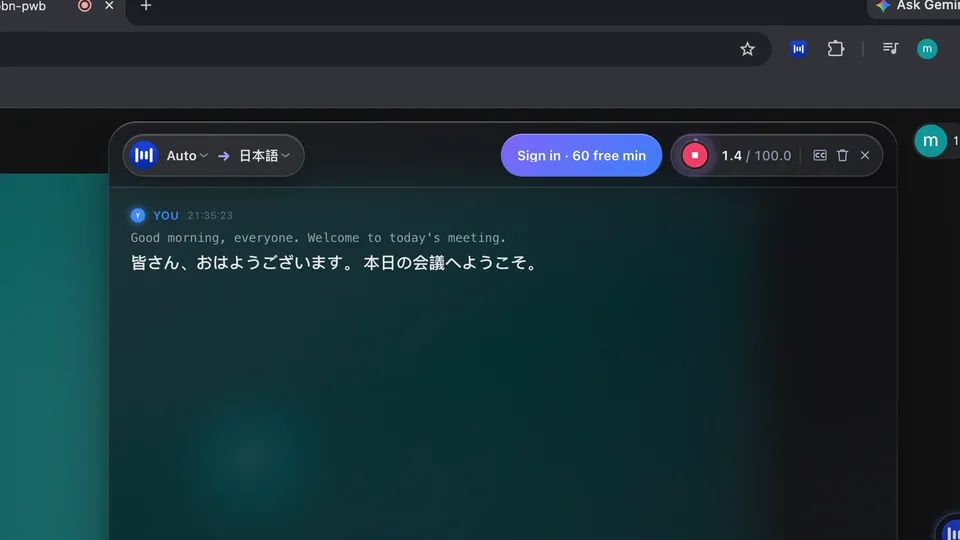
Follow the conversation as it happens. MeeLang listens to the Webex web client in Chrome and shows live captions with the source speech and translation together on your screen.
Personal captions in Chrome · No bot in the call
THE QUICK ANSWER
How do live captions work in Webex with MeeLang?
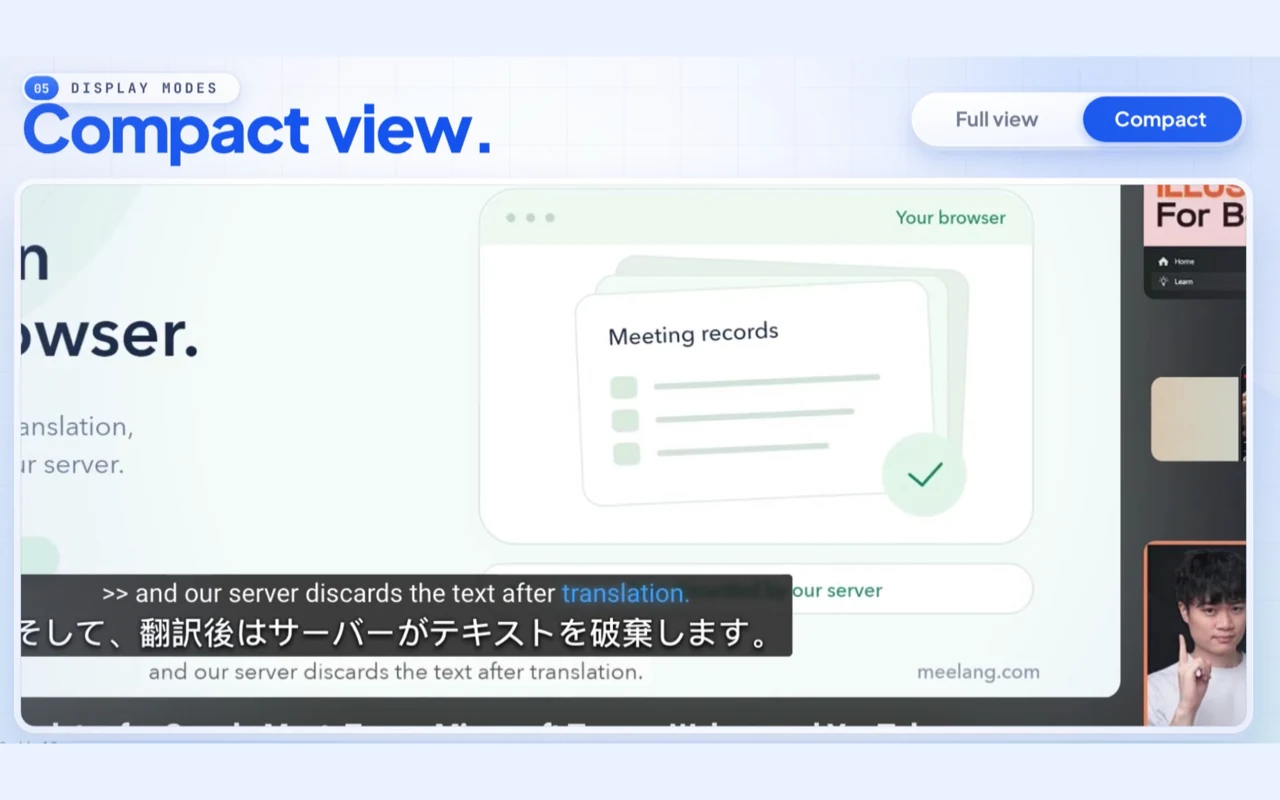
Start MeeLang in a Webex meeting opened in Chrome. It captures the audio playing in the web client, transcribes the speech, and translates it into your chosen language. The source and translated captions appear together so you can follow along and check the original when needed.
Use the compact subtitle view to keep the current line over the meeting, or switch to the full window when you need to scroll back. This is a personal view in your browser; the host and other attendees do not need to install MeeLang or change Webex settings.
HOW IT WORKS
How to turn on Webex live captions
Join the Webex web client
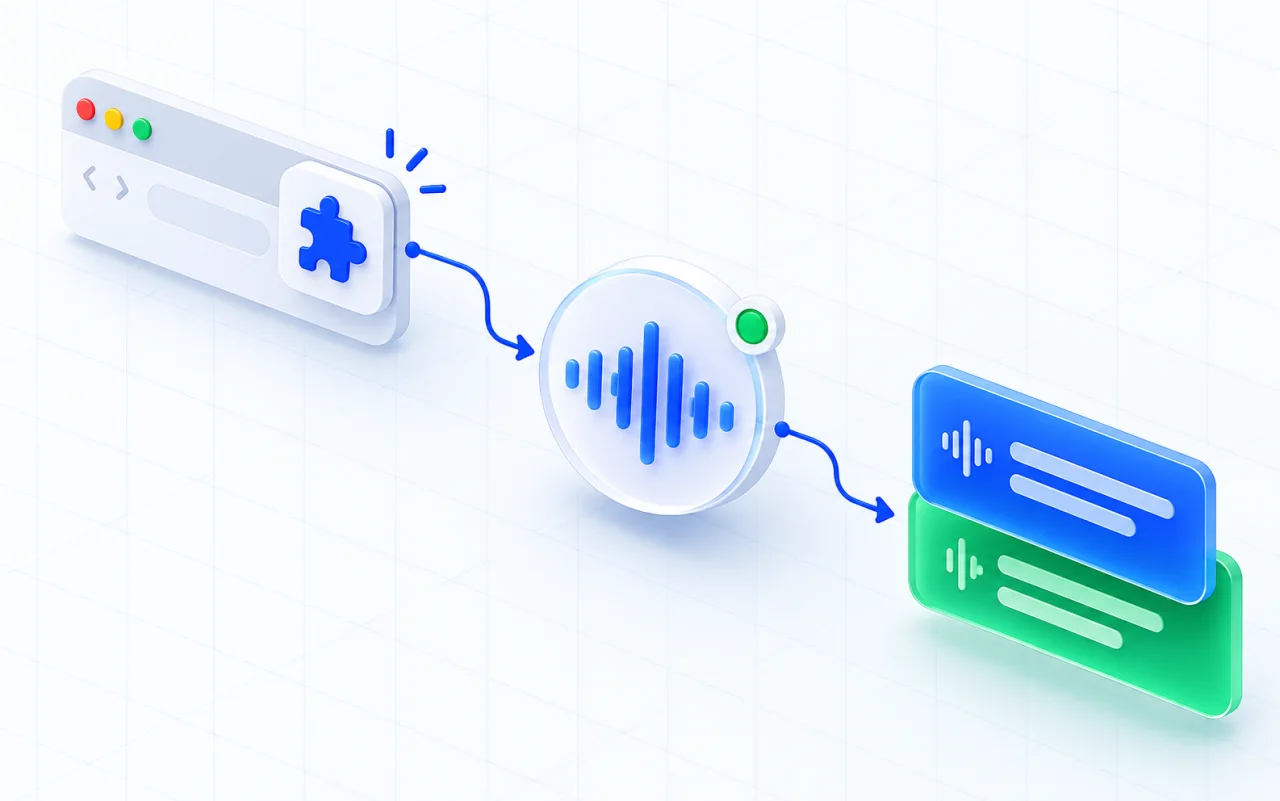
Join a Webex meeting from the web client in Chrome.
Choose your language
Open MeeLang, choose the language you want to read, and start captions.
Review your meeting
Keep compact captions over the call or open the full view for context.
BUILT FOR WEBEX IN CHROME
Keep your attention on the meeting
Live captions can make it easier to follow a speaker when audio is fast, unfamiliar, or difficult to hear. Showing both languages also lets you check key terms without switching between separate caption controls.
MeeLang uses speaker diarization to distinguish voices in Webex meeting audio and label their contributions. Recognition quality depends on audio conditions, accents, and overlapping speech. MeeLang needs the Webex web client open in Chrome while it captures audio.
PREPARE YOUR LIVE CAPTION VIEW
Make captions readable before Webex gets busy
Live captions help most when the overlay is ready before people start sharing updates. A quick setup check lets you focus on the meeting instead of moving controls while someone is speaking.
USE CASES
When Webex live translated captions help most
Use live captions when you need to follow and respond during a Webex meeting instead of waiting for a transcript afterward.
Follow a fast-moving team update
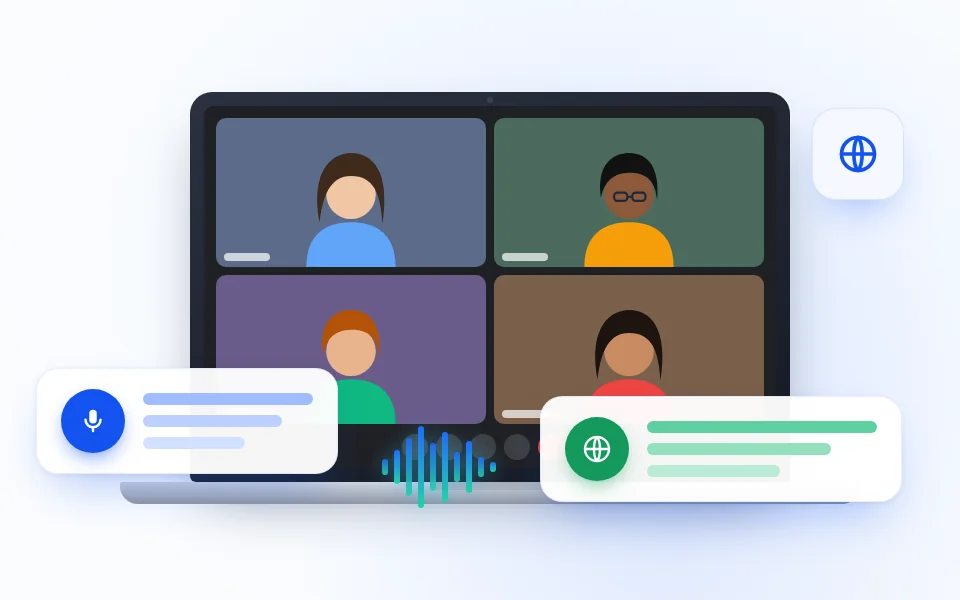
Read the current translated line while teammates share a launch change or project decision, then use the full window to check the previous turn.
TEAM UPDATES
Catch the right moment to ask a client
Catch an unfamiliar phrase during a client call and ask a useful follow-up before the conversation moves to the next topic.
CLIENT CALLS
Prepare for an interview in another language
Keep the original answer and translation together when a technical term or short response could be read more than one way.
INTERVIEWS
Follow a multilingual class or workshop
Read the instructor’s live translation while slides, examples, and learner questions move between languages in the same Webex session.
TRAININGKNOW WHAT LIVE CAPTIONS DO
Personal captions for the Webex web client
MeeLang overlays captions in your own browser. It does not publish them to the meeting, create a shared caption feed for attendees, or capture the Webex desktop application.
| Your need | Practical choice |
|---|---|
| Read translated speech during a call | Use MeeLang’s compact or full subtitle view in Chrome. |
| Give every attendee the same captions | Use a Webex or organization-approved captioning workflow intended for shared meeting access and attendee attribution. |
| Use the native desktop application | Open the meeting in the Webex web client in Chrome; the extension does not capture the desktop app. |
COMMON QUESTIONS
Webex Live Captions FAQ
Are the translated Webex captions visible to everyone?
No. MeeLang displays them in your own Chrome browser. Other participants do not need to install anything.
Does the Webex host need to enable captions?
MeeLang creates its own captions from the audio in your browser and does not require the host to enable a Webex caption setting.
Can I use live captions in the Webex desktop app?
MeeLang is a Chrome extension for the Webex web client. It does not capture the native desktop application.
How accurate are live meeting captions?
Accuracy varies with microphone quality, accents, background noise, and crosstalk. Review names and important information before acting on a caption.
The caption window is open but stays empty
Make sure the Webex meeting is in the current Chrome tab and audio is playing there. Start or restart MeeLang after the meeting UI has loaded. If the browser tab is muted or Webex audio is routed elsewhere, captions cannot reflect that audio.
My own speech is missing
MeeLang checks Webex’s microphone mute state and marks your own captured voice as “You”. Unmute in Webex when you want your own voice captured; check browser and meeting microphone access if that line still does not appear.
Captions are inaccurate or delayed
Low volume, echo, background noise, accents, and overlapping speech can affect recognition and translation. Improve the audio connection where possible and verify critical details with the speaker.
Stay with the conversation
Add live bilingual captions to your Webex web meeting in Chrome.
Add to Chrome