GOOGLE MEET AI SUMMARY
Google Meet AI Summary
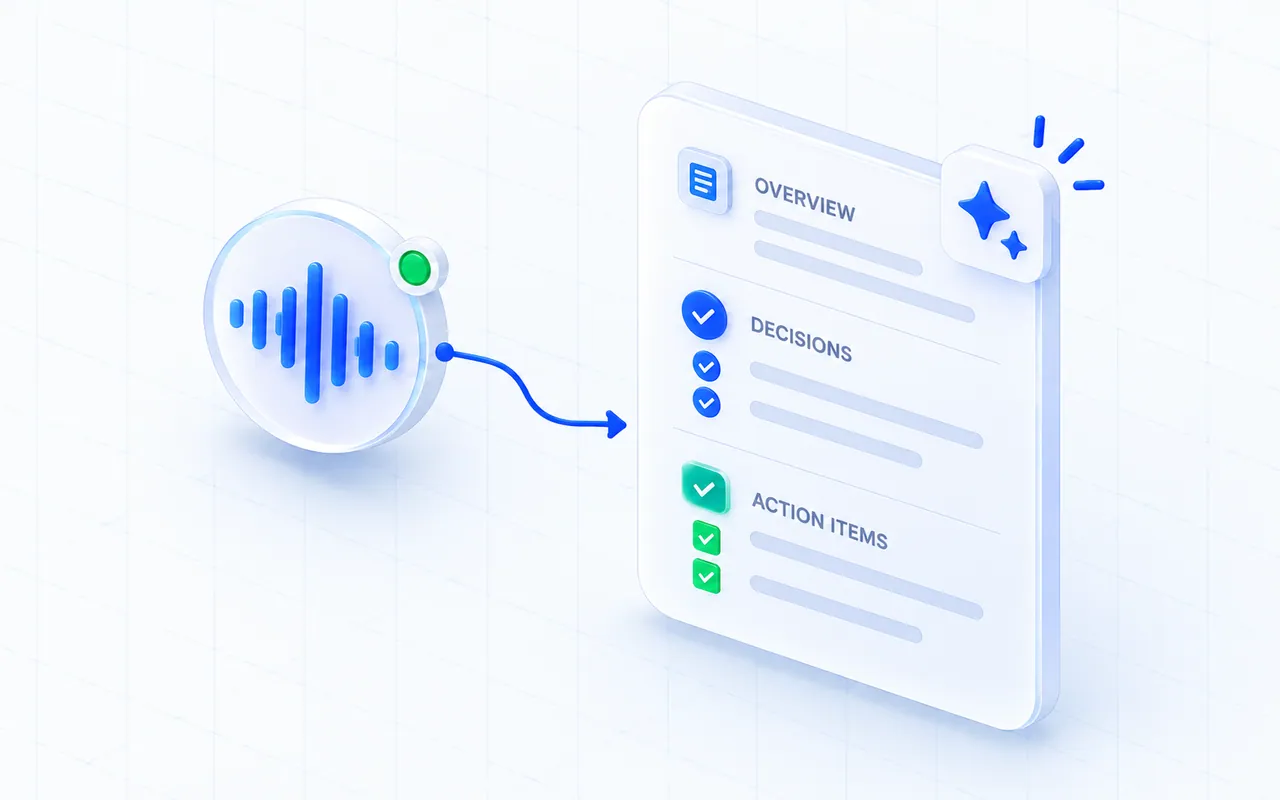
After a multilingual call, generate an overview, decisions, and action items in the language you choose. MeeLang keeps the summary with the bilingual transcript, so you can check the original discussion when you need more context.
Generate after the meeting · Requires a signed-in Pro account
THE QUICK ANSWER
What does an AI meeting summary include?
MeeLang's AI summary turns a captured meeting transcript into a short title, overview, decisions, and action items. It uses the target language set in MeeLang, then stays with the bilingual transcript so you can check names, numbers, or the context behind a takeaway.
The summary is generated when you request it from a saved meeting record; it is not an automatic Google Meet note-taker. MeeLang must be running during the call to capture the transcript. AI summaries require a signed-in account with the Pro feature entitlement.
HOW IT WORKS
How to summarize a Google Meet

Capture the meeting in Chrome
Start MeeLang when you join Google Meet. The summary uses the transcript captured during that session.
Open the saved meeting record
After the call, open the meeting in MeeLang's Meetings list. Summary language follows your target-language setting.
Generate and review the takeaways
Ask MeeLang to create the summary, then check important names, dates, and decisions against the transcript.
ILLUSTRATIVE EXAMPLE
A useful summary separates the next steps
Launch planning
OVERVIEW
The team reviewed the launch timeline and agreed to confirm the remaining details before the next check-in.
DECISIONS
Keep the planned review date; share the revised materials beforehand.
ACTION ITEMS
Send the updated materials before the next meeting.
Illustrative example only; generated summaries depend on the transcript and may need review.
USE CASES
Turn a long call into a practical follow-up

Send a weekly team recap
Use the overview and decisions to draft a short update, then check the transcript before quoting a commitment.
TEAM UPDATES
Prepare a client follow-up
Review the action list for dates and next steps after a multilingual discussion. Confirm the owner yourself when the transcript does not make it clear.
CLIENT FOLLOW-UP
Share a structured interview debrief
Start with the summary to capture the main themes, then open the bilingual transcript when a hiring decision depends on the candidate’s exact words.
INTERVIEW DEBRIEF
Capture a class or workshop recap
Summarize the main explanations and action points after a multilingual lesson, training session, or team workshop.
LEARNING RECAPBEFORE YOU SHARE IT
Check the details that change the meaning
Confirm dates and numbers
A short recognition error can change a deadline, amount, or version number. Compare these against the transcript and your meeting notes.
Verify who owns each action
MeeLang may include an owner when the transcript makes one clear. If the speaker or responsibility is ambiguous, confirm it with the team instead of assuming.
Use the transcript for context
Summaries leave out nuance by design. Read the source and translation before forwarding a decision that depends on a qualification or exception.
REVIEW BEFORE YOU SHARE
Use summaries as a starting point
AI can omit nuance or misread overlapping speech, names, and numbers. Review the bilingual transcript before sharing decisions or assigning work. Your transcript and generated summary are saved in your browser profile. When you generate a summary, transcript text is sent to MeeLang's service for that request and is not retained server-side.
COMMON QUESTIONS
Google Meet AI Summary FAQ
Does Google Meet create this summary automatically?
No. MeeLang generates a summary when you request it from a captured meeting record. This is separate from Google Meet's own notes features.
Can I summarize a meeting if MeeLang was not running?
No. MeeLang needs the transcript captured while it is enabled. Starting after the meeting cannot recover speech from the earlier call.
What does the Google Meet AI summary contain?
MeeLang formats the result as an overview, decisions, and action items, in the language you choose.
Is AI summary available on every plan?
Summary generation requires signing in and an account with the Pro AI summary entitlement. Current plan details are listed on the MeeLang pricing page.
Can I trust every action item without checking it?
Review the summary against the transcript, especially for names, numbers, ownership, and decisions. AI summaries can miss context or misinterpret unclear audio.
What language is the AI summary written in?
MeeLang uses the target language set in your extension settings for the summary, matching the language you use for translated subtitles.
Can I edit or regenerate a generated summary?
You can edit the overview in the saved meeting record or request a new summary. A failed regeneration does not replace the summary already saved.
Does MeeLang keep the meeting transcript on its server?
The meeting transcript and generated summary are stored in your browser profile. For a summary request, transcript text is sent to MeeLang's service and is not retained server-side. Speech and text are also processed to provide transcription and translation.
Turn a Google Meet into clear next steps
Capture the meeting in Chrome, then review a summary alongside the transcript it came from.
Add to Chrome