MICROSOFT TEAMS TRANSCRIPTION
Microsoft Teams Transcription
Follow a Teams web meeting as speech becomes readable text. MeeLang keeps the transcript in your browser so you can review what you heard after the call.
Teams on the web · Live transcription · No meeting bot
THE QUICK ANSWER
How to transcribe a Microsoft Teams meeting
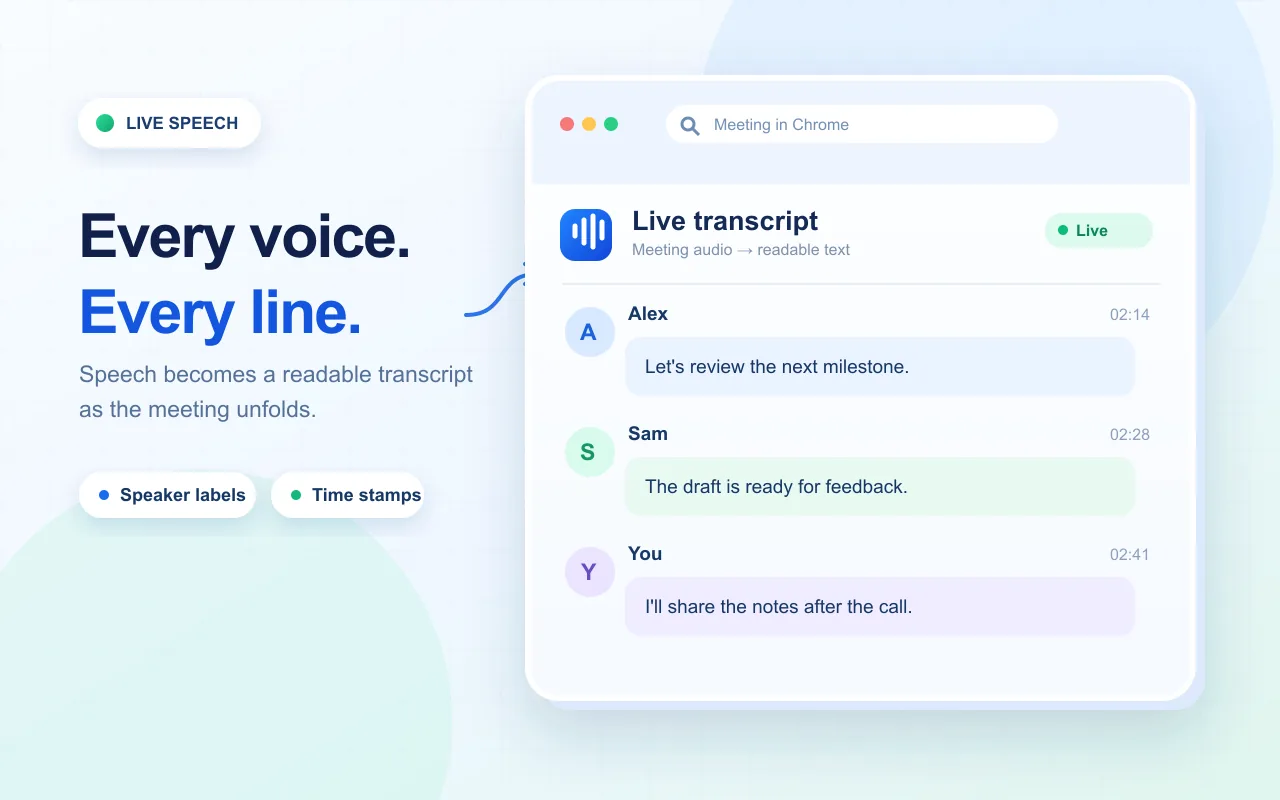
Open your Teams meeting in Chrome and start MeeLang while the conversation is underway. It turns the meeting audio in that browser tab into live text, with original speech and translated text together when translation is enabled.
The full subtitle view keeps earlier lines available while you follow the call. Afterward, review the meeting record in the same browser profile. MeeLang cannot reconstruct speech from before it was started, so enable it before the discussion you need to capture.
HOW IT WORKS
How to transcribe a Microsoft Teams web meeting

Join in Chrome
Open the Teams meeting link and continue in the browser. MeeLang is a Chrome extension for the Teams web client.
Start MeeLang before the discussion
Choose your reading language and turn on the extension once you are in the meeting.
Review the captured lines
Use the full subtitle view to scroll through the active conversation. After the call, open the saved meeting record in MeeLang’s Meetings page to review or export the transcript.
MICROSOFT TEAMS
A transcript for real Teams follow-up
Follow without losing the thread
Read the current line while the meeting continues, then scroll back when a name, number, or decision passes too quickly.
Keep both languages together
When translation is enabled, the source speech and translated line appear together so you can check terminology against what was said.
Review on your device
Meeting records are kept in the browser profile that captured the call. Open that profile to review or export the transcript later.
A PRACTICAL SETUP
Prepare Teams for a readable transcript
MeeLang captures live speech from the Teams web meeting in your Chrome tab. A quick check before the agenda starts can prevent a blank or incomplete transcript.
Join the Teams web client in Chrome
Open a work or school meeting at teams.microsoft.com or teams.cloud.microsoft, or a personal meeting at teams.live.com, and continue in Chrome. MeeLang does not capture the Teams desktop or mobile app.
Check that meeting audio is connected
Join the call and confirm sound is playing in the browser tab. If the tab is muted, remote audio is not connected, or your device output is wrong, there is no usable speech for transcription.
Start before the topic you need
Turn on MeeLang and choose your target language before the conversation begins. It captures new lines during the active session, not speech from before it was started.
Return in the same Chrome profile
After the call, open MeeLang’s Meetings page in the Chrome profile that captured it. Search the source or translated text there and export the record for your own follow-up.
USE CASES
Useful for meetings where details move quickly
Project check-ins
Capture dates, owners, and decisions during a cross-border update. Search the saved meeting text later instead of relying on memory.
Training and onboarding
Read explanations as they happen, then revisit a term or instruction after the presenter has moved on.
Customer conversations
Keep a written reference for follow-up questions. Check names, amounts, and commitments against the original line before sharing notes.
WHICH TRANSCRIPT SHOULD YOU USE?
Choose between a Teams transcript and MeeLang
Use Teams’ built-in transcription when your organization needs its policy-managed meeting transcript and approved storage. Use MeeLang when you want a personal browser transcript paired with translation. Availability and access to Teams transcripts depend on organizer, admin, and meeting settings; see Microsoft’s transcript guide for its current workflow.
COMMON QUESTIONS
Microsoft Teams Transcription FAQ
Does this work in the Teams desktop app?
No. MeeLang is a Chrome extension for Teams on the web. Join in Chrome at teams.microsoft.com or teams.cloud.microsoft for work or school, or teams.live.com for personal meetings.
Can MeeLang transcribe a meeting after it ends?
No. It captures new speech only while MeeLang is running. Start it before the part of the call you need.
Where is the MeeLang transcript stored?
The meeting record is saved in the browser profile that captured the call. Open MeeLang’s Meetings page in that profile to find and export it.
Does MeeLang create a Teams video recording?
No. MeeLang saves text captured from meeting audio; it does not record the meeting video or join as a participant.
Can MeeLang distinguish speakers in a Teams transcript?
Yes. MeeLang uses speaker diarization to distinguish voices in Teams meeting audio and label their contributions in the transcript.
I joined the Teams meeting, but no lines appear. What should I check?
Confirm that you are using Teams on the web in Chrome, the meeting audio is connected and audible, and MeeLang is enabled for the active tab. The transcript starts from the time MeeLang begins capturing.
The transcript stops when I switch meetings or close the tab. Is that expected?
MeeLang records the active browser meeting. When that session or tab ends, capture stops. Start MeeLang again in the new meeting, then verify new lines appear before continuing.
Can I use this page to transcribe a Teams recording later?
This workflow describes live browser capture. It does not upload a Teams recording or recover a past meeting. For a recording, use the transcript options provided by its organizer or your organization.
Keep the details from your next Teams call
Start MeeLang before the conversation and review the captured text in your browser afterward.
Add to Chrome