YOUTUBE TRANSCRIPTION
YouTube Transcription
Turn a YouTube video into text you can actually use. Search a video’s available captions, return to the moment a line was spoken, and read the original beside its translation. When a video has no usable captions, live voice translation can follow new speech from the point you start it.
For youtube.com in Chrome on desktop
THE QUICK ANSWER
Can I get a transcript from a YouTube video?
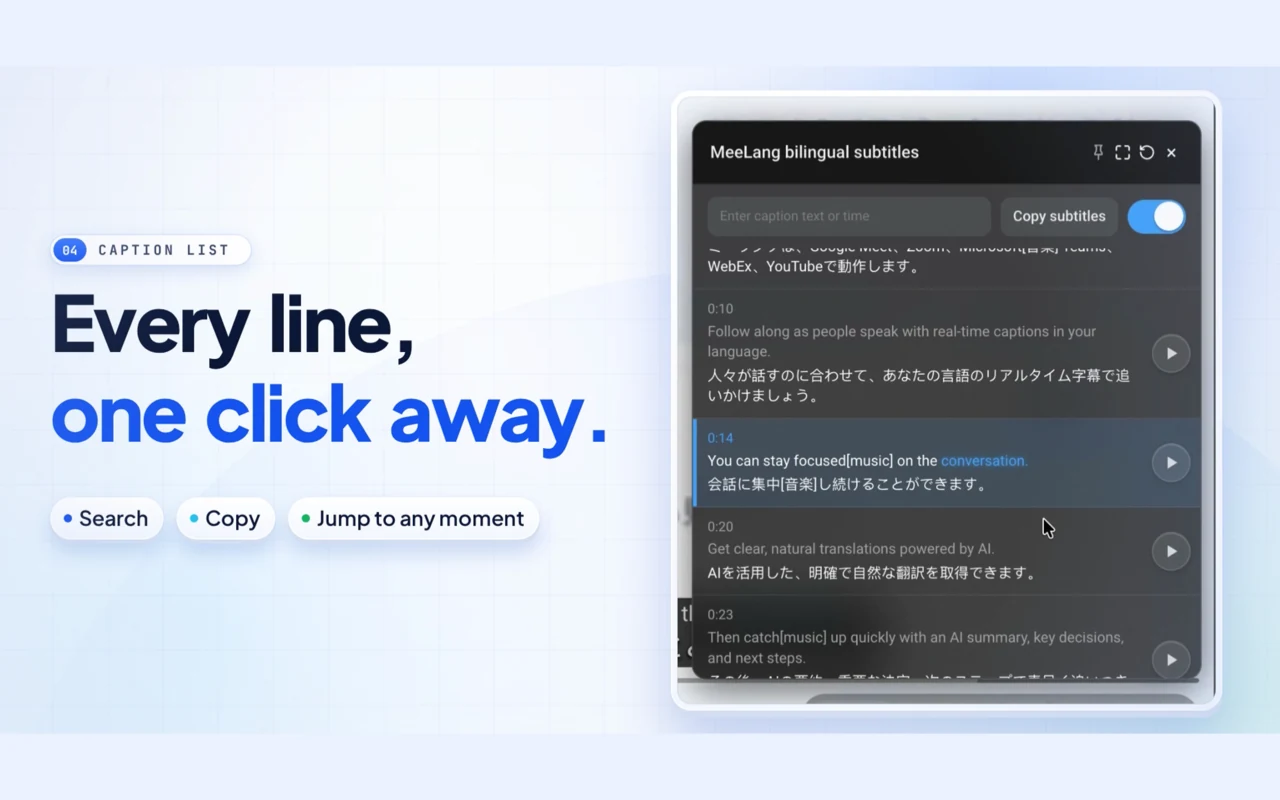
Yes. On a video with an available caption track, MeeLang loads the timed lines for the video, not just the line currently on screen. Open the transcript to find a term from an earlier chapter, read its surrounding lines, or compare the original wording with your translation. This is useful when a long lesson or interview contains one explanation you need to revisit.
Search the caption list, select a line to return to its place in the video, and copy or download the text you need for notes. If the video has no usable track, switch to live voice translation: MeeLang recognizes the audio as it plays and keeps those new lines in the running session. The two sources have different coverage, so choose a caption track when you need the video’s available earlier timestamps.
HOW IT WORKS
How to get a YouTube transcript
Open a video in Chrome
Go to youtube.com and play the video. MeeLang works with regular videos, Shorts, and live streams on desktop Chrome.
Choose your language
Open the MeeLang player control and select the language you want to read. Use the video's captions when available, or live voice translation when they are not.
Open the caption list
With a caption track loaded, search its lines, return to a timestamp, and copy or download subtitle text for reference.
TRANSCRIPT PREVIEW
Find the line, then return to the moment
A transcript is more useful when every line still belongs to the video. In caption-track mode, the list is searchable and timed: look up a term, read the original and translation together, then select a line to hear the surrounding explanation again. The short example below shows how that review works.
| Time | Original line | Translation |
|---|---|---|
| 00:42 | The result depends on the sample size. | El resultado depende del tamaño de la muestra. |
| 01:18 | Compare it with the earlier test. | Compáralo con la prueba anterior. |
| 02:05 | Now we can explain the difference. | Ahora podemos explicar la diferencia. |
Illustrative transcript. A real video’s available captions, timing, and translation depend on its source track.
CHOOSE THE RIGHT SOURCE
Caption transcript or speech recognition?
The caption-track source provides the video's available timed text across its timeline. Live voice translation recognizes only audio heard after it starts, so choose a track when you need to review earlier moments.
USE CASES
A faster way to study a long video
Reading a whole video again is rarely the goal. Use the transcript to locate the part that matters, check its wording, and keep a useful excerpt for later.

Find a concept in a lecture
Search for a term from a class or conference talk, then read the lines around it. Select the timestamp to hear the explanation in context instead of guessing from an isolated sentence.
Revisit an interview answer
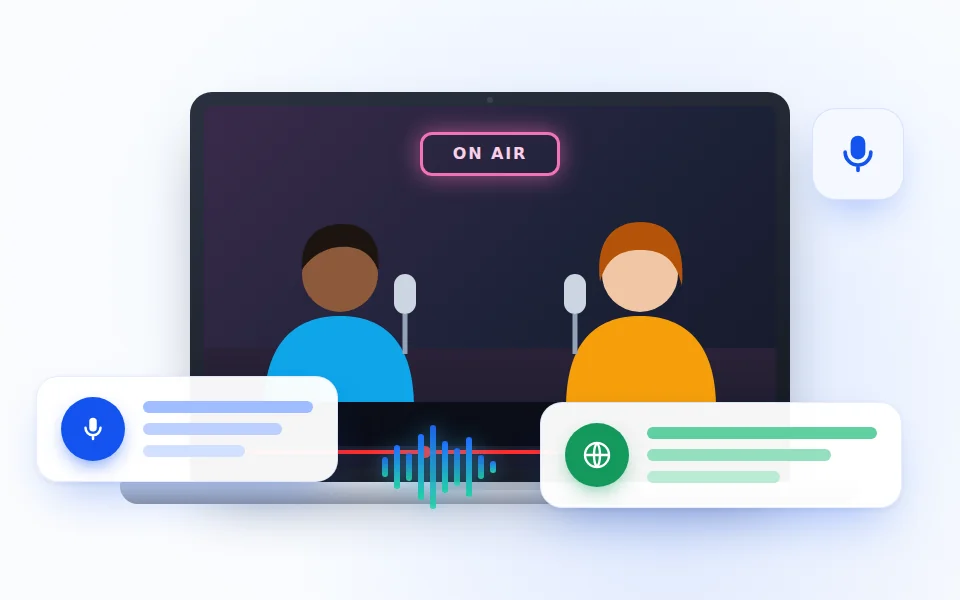
In a long interview, locate the moment a guest mentioned a name, decision, or example. Compare the source line and translation before you quote or summarize what they said.
Build language study notes
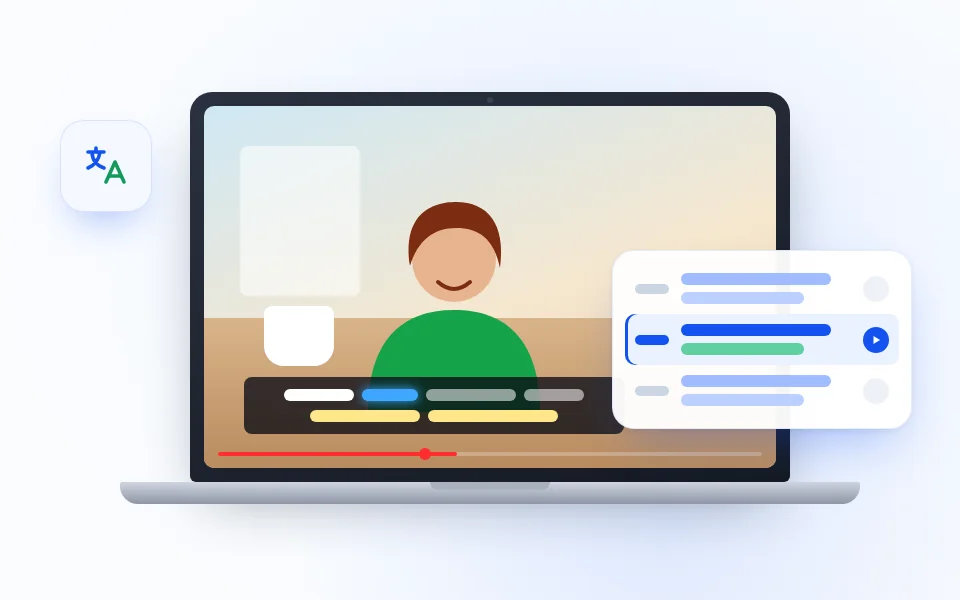
Keep a short excerpt with both languages, replay its timestamp, and listen for how the spoken phrase matches the written line. Use the translation as a guide back to the source.
Review a stream after it airs
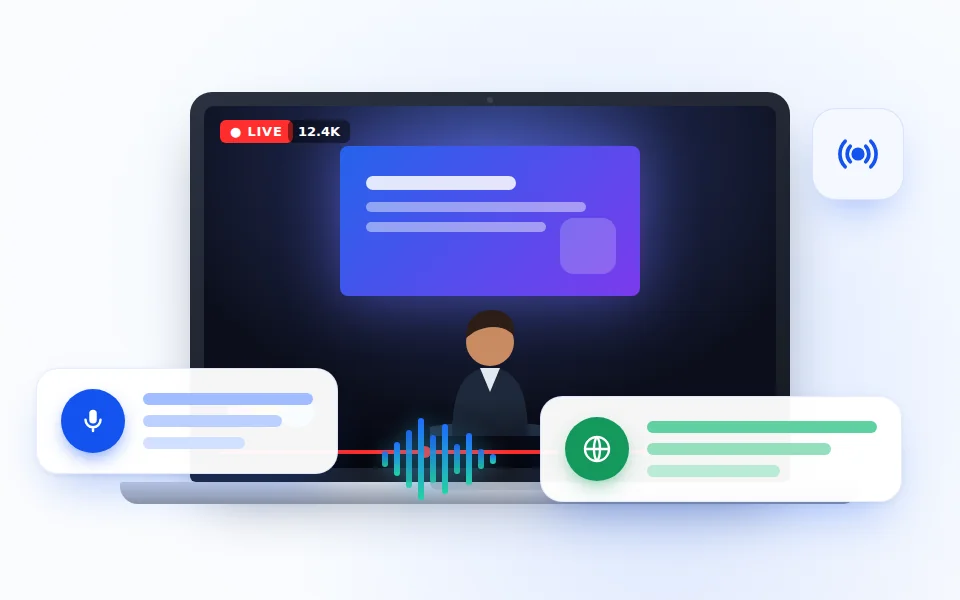
Turn a recorded livestream into a reference you can search. Find a launch detail, speaker comment, or audience answer without replaying the entire broadcast, then check ambiguous lines against the original audio.
TRANSCRIPTION · YOUTUBE
Take the useful lines with you
A searchable caption list turns a long tutorial into a set of moments you can revisit. Copy the lines you need for class notes, a research outline, or a follow-up message, and keep the source wording nearby when a translated phrase matters.
For a video without a caption track, keep live voice translation running while you watch and review the lines captured in that session. The transcript is a study aid; return to the video for an exact quote or an unclear name.
Explore YouTube translationCOMMON QUESTIONS
YouTube Transcription FAQ
Can MeeLang transcribe a YouTube video without captions?
When a caption track is unavailable, MeeLang can use live voice translation to recognize speech from the playing audio and show text as it is processed.
Can I download a YouTube transcript?
In caption-track mode, copy or download the subtitle text from MeeLang's caption list. Voice-recognized lines can be exported from the full view while that session is running. These actions export text, not the YouTube video.
Where is my transcript saved?
Loaded caption tracks and completed translations can be cached in Chrome extension storage and reused in the same browser profile; older cache entries may be removed to make room. Live voice lines are kept for the running session, so export them before closing it if you need a copy.
Does this work in the YouTube mobile app?
No. MeeLang is a Chrome extension for desktop. Open youtube.com in Chrome to use the transcript features.
Can MeeLang transcribe parts of a video I watched before starting it?
If YouTube provides a usable caption track, MeeLang can load its available text for earlier timestamps too. Live voice translation only recognizes audio after you start it, so it cannot recover earlier speech.
Can I search a YouTube transcript by word?
In caption-track mode, open the caption list and search words or phrases across the loaded track. Live voice mode follows speech as it is recognized; it does not provide the complete searchable caption-track list.
Can I jump from a transcript line back to the video?
Yes, when the transcript comes from a YouTube caption track. Select the timed line in MeeLang’s list to return to that point in the video and hear the phrase in context.
Can I use MeeLang to transcribe YouTube Shorts?
MeeLang works in the YouTube Shorts player on desktop Chrome. If a usable caption track is available, you can read its lines; otherwise live voice translation follows new speech as the Short plays.
The caption list is empty
Check that the video is playing and that YouTube has a usable caption track; auto-generated captions may take time to appear. If there is no track, start live voice translation while the speech you need is playing. It cannot fill in earlier audio.
The transcript is missing words or does not match the audio
Check which caption track YouTube has selected and try another available language track. Creator captions can differ from the spoken audio; voice recognition can also miss speech under music or overlapping voices. Replay the section before using it as a quote.
I cannot find or export a line
Search the loaded track and use a line's play control to jump by timestamp, then use the list's copy or download control. Voice-recognized lines do not populate the complete searchable track list; export them from the full view before the running session ends. Export is text, not the video file.
Turn YouTube speech into text you can revisit
Open a video in desktop Chrome and use MeeLang to follow available captions or live speech recognition.
Add to Chrome