ZOOM AI MEETING SUMMARY
Zoom AI Summary
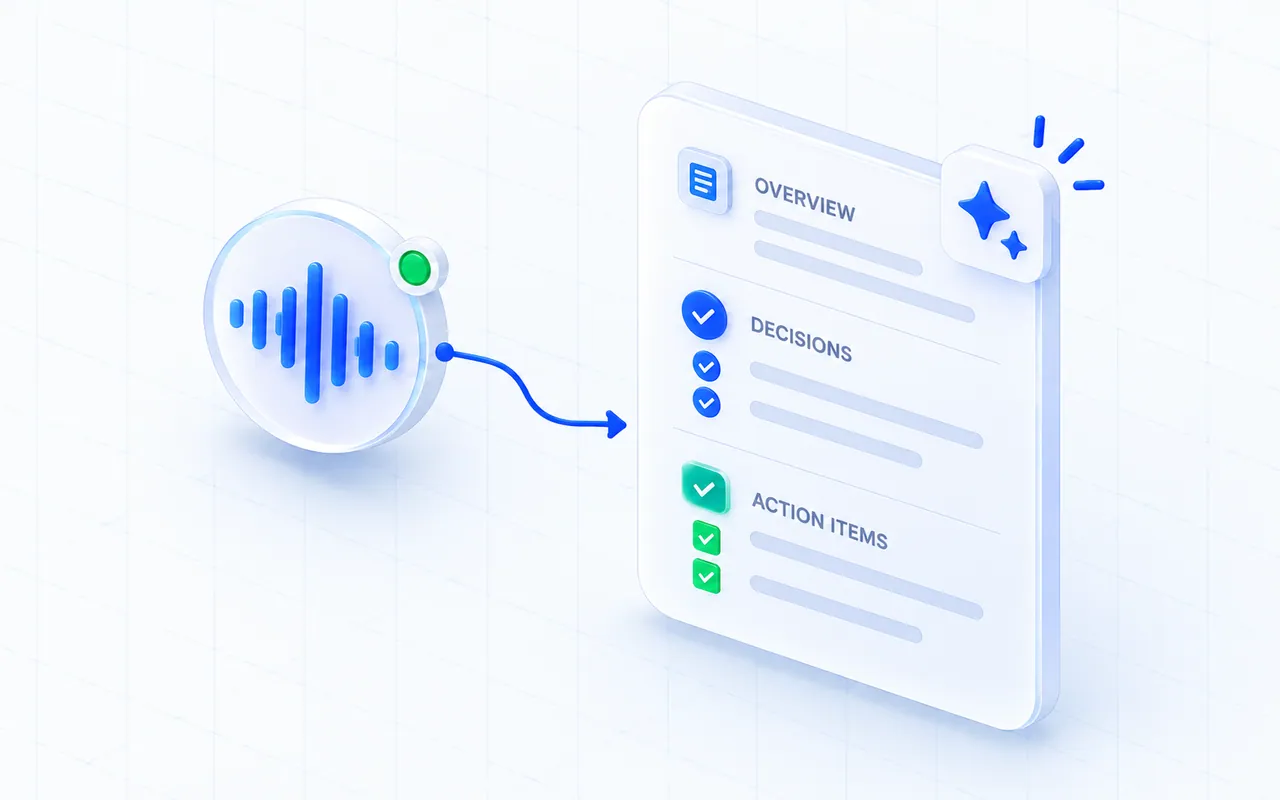
Turn a Zoom meeting transcript into an overview, decisions, and action items in your subtitle language. Capture the call in the Zoom web client in Chrome, then generate the recap from your meeting record with MeeLang Pro.
Requires a MeeLang account with AI summary access
THE QUICK ANSWER
Summarize a Zoom call after you have a transcript
A long Zoom call can leave you searching for the decision behind a detail. MeeLang creates an AI-generated overview, decisions, and action items from the transcript captured during the call. It is useful for reviewing a customer conversation, interview, or cross-language team meeting after everyone has left.
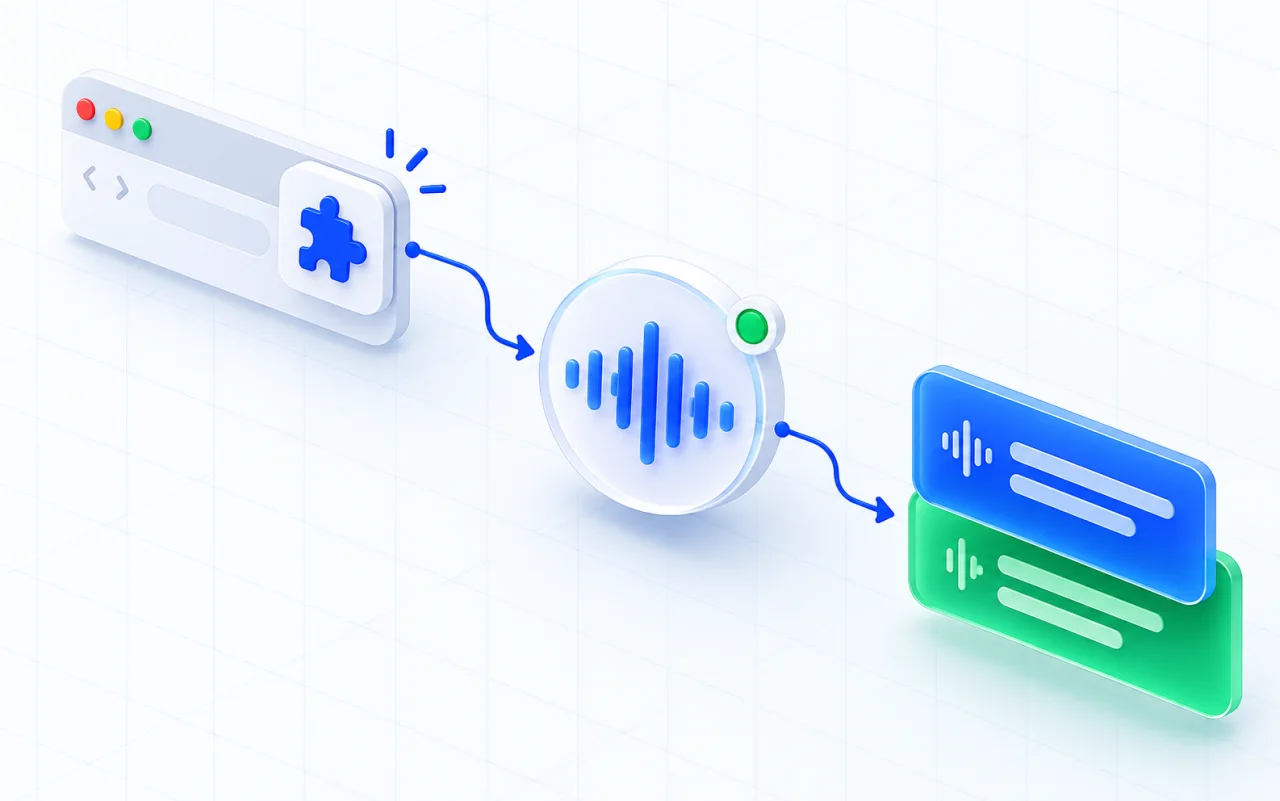
Capture the meeting with MeeLang while you are in the Zoom web client in Chrome. In the extension's Meetings page, open that meeting and choose Generate summary. You need to be signed in with an account that has Pro summary access, and the meeting must contain a transcript. Generation sends transcript text for processing; the meeting record and generated result are saved in your browser. The result is a draft: verify names, dates, decisions, and owners against the transcript before sharing.
HOW IT WORKS
How to generate a Zoom AI summary
Capture the meeting in Chrome
Join the Zoom web client in Chrome and start MeeLang before the discussion you need to capture. Confirm that transcript lines appear as people speak.
Open the meeting record
After the call, open the extension settings and select Meetings. Find the record in the same Chrome profile where it was captured.
Generate and review
Set your subtitle target language, sign in with Pro summary access, then select Generate summary. Review the overview, decisions, and actions against the transcript before sharing.
A PRACTICAL MEETING RECAP
Move from a long conversation to a useful review
USE CASES
When a Zoom AI summary is useful
Use the summary to orient your follow-up, then return to the transcript for exact wording and context.

Cross-language team meetings
Read an overview in your subtitle language after a call. For a decision that affects the team, compare the summary with the original transcript lines.
TEAM UPDATES
Customer calls
Review the customer's needs and proposed next steps before writing a follow-up. Confirm commitments and dates against the source conversation.
CLIENT FOLLOW-UP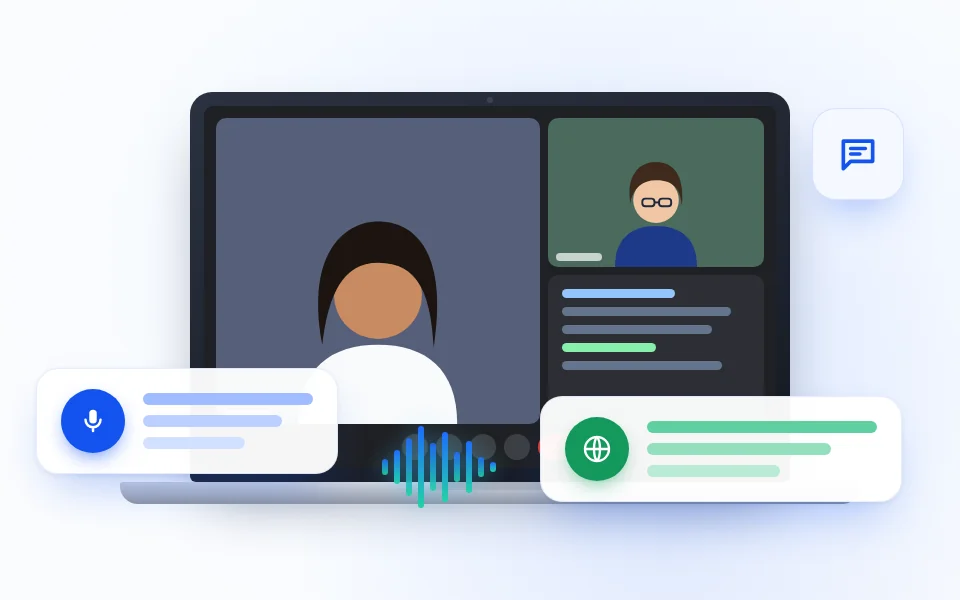
Interviews and research
Use the overview to find themes worth revisiting, then check the transcript before treating a paraphrase as a direct quote.
INTERVIEW DEBRIEF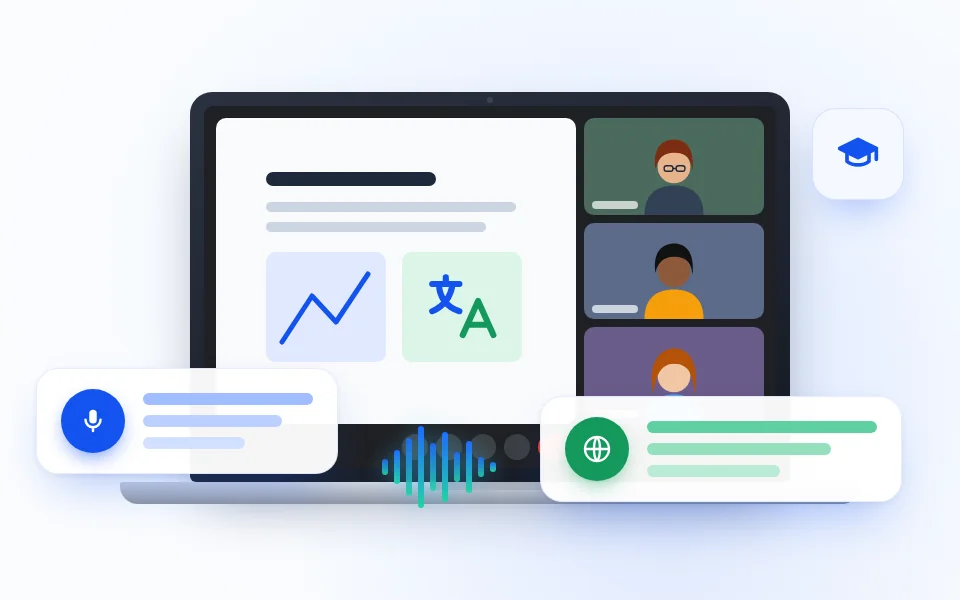
Training and demos
Summarize the main explanations and action points after a product walkthrough, lesson, or internal training in Zoom.
LEARNING RECAPKNOW WHAT THE RECAP CAN TELL YOU
Treat the summary as a first pass
WHEN SUMMARY GENERATION STOPS
Check the meeting record and account
COMMON QUESTIONS
Zoom AI Summary FAQ
Can MeeLang summarize a Zoom meeting?
Yes. MeeLang Pro can generate an overview, decisions, and action items from a transcript captured with the extension.
Does AI summary work without a transcript?
No. MeeLang summarizes transcript text. Start the extension during the Zoom meeting so it can capture the conversation first.
Does AI summary work with the Zoom desktop app?
MeeLang captures audio from the Zoom web client in Chrome. The desktop and mobile applications are not supported.
Is the transcript sent for AI summary processing?
Yes. Generating a summary sends transcript content for processing. The captured meeting record is stored in your browser. Review MeeLang's privacy policy before using it with sensitive meetings.
Can I trust every action item in the summary?
Treat the summary as a draft. Check names, owners, dates, and decisions against the original transcript before relying on or sharing it.
Which language does MeeLang use for the summary?
The summary uses the target language selected in your subtitle settings. Set that language before generating the recap.
Can I edit decisions and action items?
The meeting record lets you edit the overview. Decisions and action items are displayed as generated lists, so check and correct those details separately before sharing if needed.
Turn a Zoom conversation into next steps
Capture your Zoom web meeting in Chrome, then review the summary against its saved transcript.
Add to Chrome