SETUP GUIDE · ABOUT A MINUTE
Installed
Translate Google Meet in real time. Set up in three steps.
MeeLang is installed. Three quick steps to go.
MeeLang is a free Chrome extension that adds AI-translated subtitles to Google Meet. Install it, turn translation on, and choose your target language — setup takes about a minute, and no account is required.
Set this up once, and every meeting after that comes with subtitles in your language.
Install MeeLang and pin it to your toolbar
Add MeeLang from the Chrome Web Store, then click the puzzle-piece icon to the right of Chrome's address bar, find MeeLang in the list, and click the pin. You'll use that icon to turn translation on and off mid-call, so keep it where you can see it.
Turn on translation and choose your target language
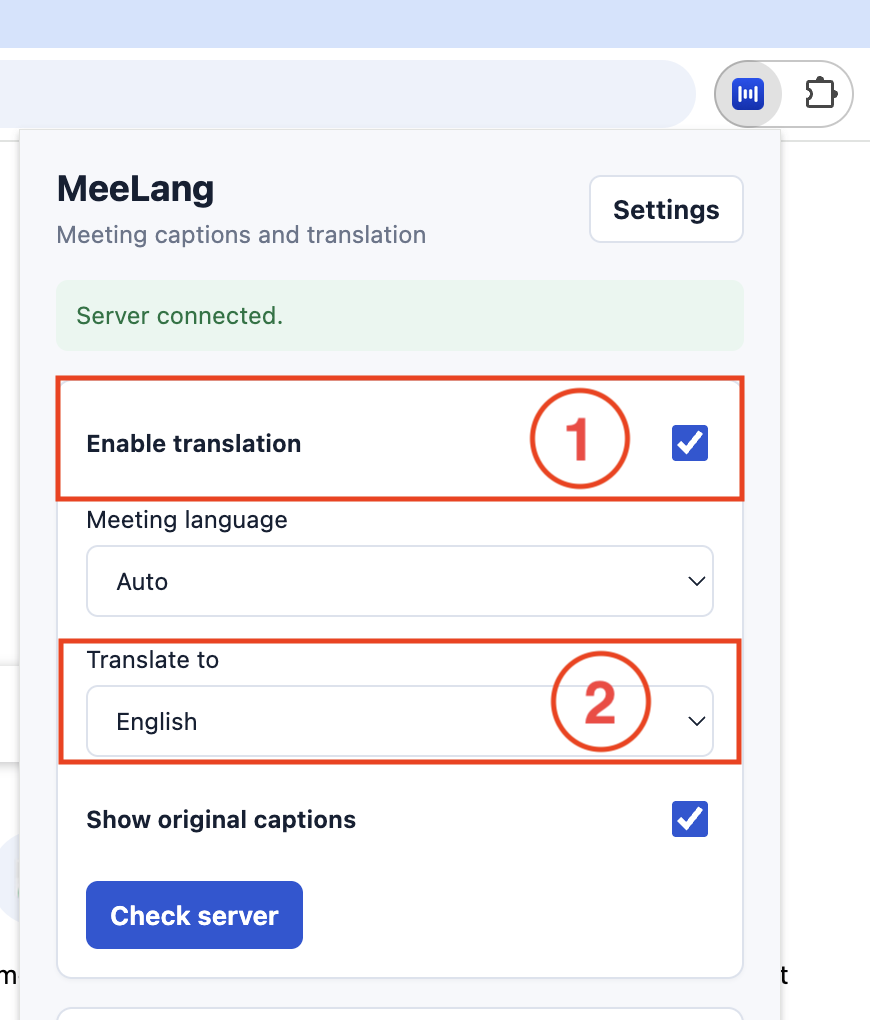
Click the MeeLang icon, switch on Enable translation, then set Translate to to whichever language you want to read. Leave Meeting language on Auto and MeeLang works out what's being spoken. If it keeps mishearing, set Meeting language to the language the speaker is actually using.
Join a meeting and click Allow
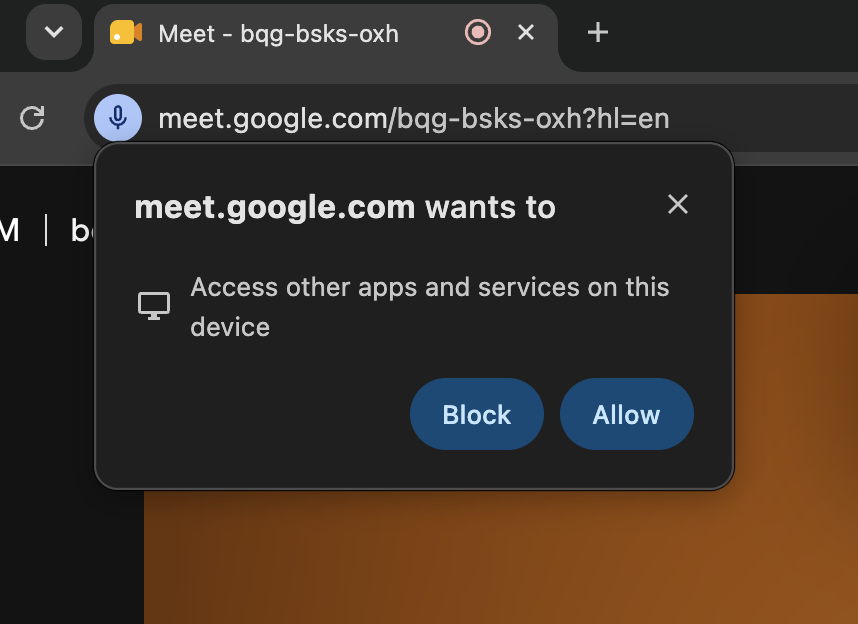
The first time you join a Google Meet with MeeLang installed, Chrome asks to “Access other apps and services on this device”. Click Allow — without it MeeLang can't hear the meeting, and no subtitles appear.
What's free. 30 translation minutes a month. Sign in with Google from Settings — same extension, nothing else changes.
Where it works. Google Chrome on desktop, in Google Meet, with 30+ target languages and the spoken language detected automatically — see every language pair. It also works in the web versions of Zoom, Microsoft Teams and Webex, and on YouTube.
Ready when you are.
Install the extension, open a meeting, and turn translation on.
Open a meeting, click the MeeLang icon, and turn translation on.
Something not working? The support page covers the usual causes, or email [email protected] and we'll take a look.