BLOG · GUIDE
How to Watch YouTube with Bilingual Subtitles (2026)
YouTube can only show one caption language at a time, so to watch with bilingual subtitles you need a browser extension. In desktop Chrome, MeeLang shows the original captions and a translation together inside the YouTube player, with the translation above or below, and adds a clickable caption list that is handy for learning a language.
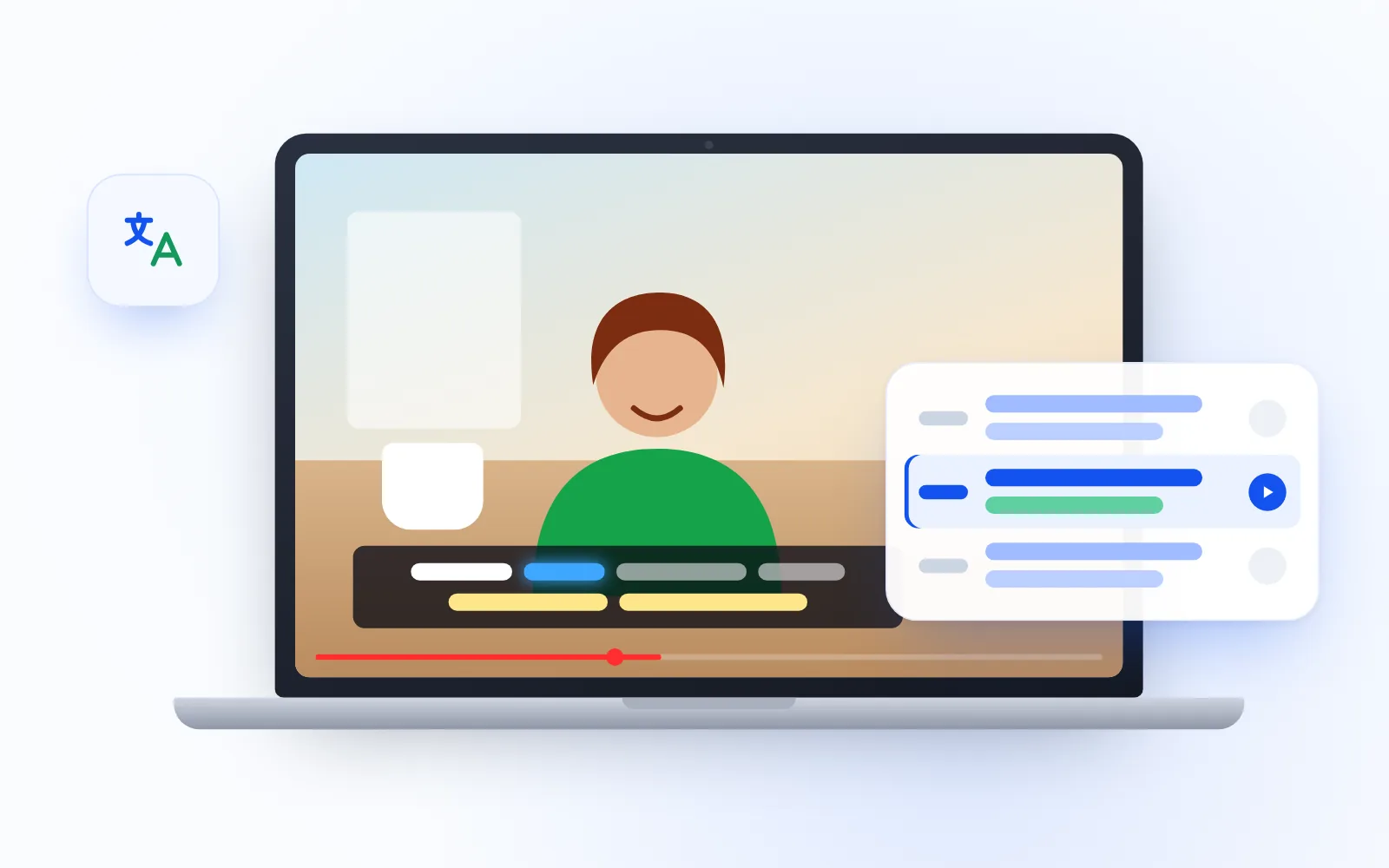
YouTube does not have a built-in way to show two subtitle languages at once. Its caption menu lets you pick one track, or one auto-translated language, and that replaces whatever was on screen before. To watch YouTube with bilingual subtitles, also called dual subtitles, you need a browser extension that draws a second line next to the original.
This guide shows how to set that up with MeeLang in desktop Chrome, how to adjust the layout, and how to use two-language subtitles to study a language without making it a chore.
Can YouTube show two subtitles at once?
Not on its own. On desktop, YouTube's subtitle options sit under Settings → Subtitles/CC. You can choose a caption track, and if the video has one, you can then pick Auto-translate to read it in another language. Either way, you see one language at a time. Turning on Auto-translate swaps the original captions for the translation.
That is fine when you only want to understand the video. It is less useful when you want to compare what was said with what it means, which is what most language learners and bilingual viewers are after.
There is also a precondition: YouTube's translation only works when the video already has a caption track. If Auto-translate is missing from your menu, our guide to YouTube auto-translate not showing explains why.
How do I get bilingual subtitles on YouTube?
MeeLang's YouTube translator adds a second subtitle line inside the YouTube player. On videos with captions it uses caption translation, which translates whole sentences rather than caption fragments, so the translated line reads naturally and stays in sync when you skip back or jump ahead. Caption translation is free while it is in beta, and you can start without signing in.- Install MeeLang from the Chrome Web Store in desktop Google Chrome.
- Open a video on youtube.com. Regular videos, Shorts, premieres and live streams are supported; YouTube players embedded in other websites are not.
- Click the MeeLang button in the player controls, next to CC.
- Choose the language you want the translation in. MeeLang supports more than 30 languages and detects the spoken language automatically.
- Pick which caption track to translate in YouTube's own CC menu if the video has more than one.
- Set the display to show the original and the translation together.
The two lines appear inside the player, stay there in fullscreen, and pause while ads play.
For videos with no captions and for live streams, MeeLang switches to live voice translation, which listens to the audio and translates as people speak. It needs the video playing and not muted. For the full picture of when each mode applies, see how to translate a YouTube video into English or any language.
Which subtitle layout should I use?
MeeLang gives you a few layout choices so the subtitles fit the way you watch:
| Setting | Options | When it helps |
|---|---|---|
| What to show | Original + translation, or translation only | Use both lines for study; use translation only for casual viewing |
| Translation position | Above or below the original | Put the line you read first on top |
| Style | Font, size, colors, background, text effect | Make one line stand out, or improve contrast on bright videos |
| Placement | Drag the subtitles up or down | Keep them clear of on-screen text, slides or faces |
One setup that suits learners is the original on top, the translation below in a smaller or dimmer style. Your eye lands on the language you are learning first, and the translation is there to check against.
What is word-by-word highlighting?
With word-by-word highlighting, each word of the original subtitle lights up as it is spoken. It helps you connect the sound of a word to its spelling and hear where one word ends and the next begins.
There is one condition: highlighting only works on videos that use YouTube's auto-generated captions. You can change the highlight color, or turn highlighting off if you find it distracting.
How does the caption list work?
The caption list shows every subtitle line in the video in one place. It is the most useful study tool in the set:
- Click a line to replay from there. Missed a phrase? Click it and the video jumps back to that moment.
- Search by word or timestamp. Find every place a word comes up, or jump to a time someone mentioned.
- Auto-follow. The list scrolls to keep the line being spoken in view, so you can read ahead or glance back.
- Copy or download. Copy the subtitles, or download them as a text file to review later or build your own word list.
How can I learn a language with YouTube bilingual subtitles?
Dual subtitles are a convenient tool, not a method by themselves. These are practical ways to use them; adjust them to your level and the time you have.
Choose videos you would watch anyway
You will stick with it longer if you actually like the content. Pick creators who speak the language you are learning about topics you already follow. If the video has YouTube's auto-generated captions, you also get word-by-word highlighting.
Start with both lines, then cut back
At first, keep the original and the translation visible. As the language starts to feel familiar, switch to translation only when you just want to follow along, and back to both lines when you want to study. You can also restyle the translation to be smaller or fainter so you read the original first.
Replay short pieces
Instead of rewatching a whole video, use the caption list to click back to a single line. Listen, read the original, check the translation, and play it again until you can follow it without reading. Short, repeated passes are easier to fit into a busy day than a full rewatch.
Shadow the speaker
Click a line in the caption list, listen, pause, and repeat it out loud with the same rhythm. Word-by-word highlighting, when available, shows you exactly which word you should be on.
Keep a word list
Download the subtitles as a text file after a video you liked. Pick out the words and phrases you want to keep, and review them before the next session. Searching the caption list for a word also shows you every place it appears in that video, so you can hear it in more than one sentence.
Watch live and uncaptioned content too
Once you are comfortable, try live streams or videos without captions. MeeLang's live voice translation gives you a translation as people speak, which is closer to real conversation. It uses translation minutes; signing in with Google gives free minutes every month.
If you want to compare MeeLang with other extensions aimed at language learners, see our roundup of the best YouTube translator extensions.
Frequently Asked Questions
Can I watch YouTube with two subtitles at once?
Not with YouTube's built-in settings, which show one caption language at a time. A Chrome extension such as MeeLang's YouTube translator shows the original and the translation together inside the player.
Are YouTube bilingual subtitles free?
MeeLang's caption translation, which powers bilingual subtitles on videos with captions, is free while in beta. Live voice translation for live streams and uncaptioned videos uses translation minutes, with free minutes every month when you sign in with Google.
Why is word-by-word highlighting not working?
Highlighting only works on videos with YouTube's auto-generated captions. On videos with creator-uploaded captions only, the subtitles still show, but individual words do not light up. Also check that highlighting has not been turned off.
Can I save the subtitles to study later?
Yes. From MeeLang's caption list you can copy the subtitles or download them as a text file, and search the list by word or timestamp while you watch.
Do bilingual subtitles work in fullscreen and on Shorts?
Yes. MeeLang's subtitles render inside the YouTube player, keep working in fullscreen, and are available on Shorts.
Does this work on my phone?
No. MeeLang is a desktop Chrome extension for youtube.com. It does not work in the YouTube mobile app or on YouTube videos embedded in other websites.
Final Thoughts
YouTube's own captions are enough when you only need to understand a video in one language. When you want the original and the translation side by side, whether to follow content in two languages or to learn one, an extension is the way to get there. Set the layout to suit you, use word-by-word highlighting on auto-captioned videos, and let the caption list do the rewinding for you.
Watch YouTube in two languages at once
MeeLang shows the original captions and a translation together inside the YouTube player, free while caption translation is in beta.
Add to Chrome